I'm finally streaming Netflix in 4K on Chrome — here's how you can too
Aug 8, 2026 — 6:30 AM ET
If you use Chrome, you probably know how frustratingly difficult it is to watch Netflix in 4K. Despite paying for the Premium plan, I’ve always had to switch to Microsoft Edge on my Windows PC or Safari on my MacBook just to get the best streaming quality. And when Chrome is the browser I use for practically everything, switching browsers just for Netflix gets annoying very quickly.
So, when I heard Netflix was finally bringing 4K streaming to Chrome, I genuinely jumped with joy. I’m not kidding or exaggerating — that was my exact reaction. Unfortunately, my excitement didn’t last very long.
Watching Netflix in 4K on Chrome isn’t quite as simple as opening it and hitting play. There are still quite a few boxes you need to tick, but doing so is well worth it. Here’s everything you need to know before getting started.
When you watch Netflix on a computer, which browser do you actually use?
How to finally watch Netflix in 4K on Chrome
Getting Netflix to stream in 4K on Chrome isn’t exactly a one-click affair, but the best place to start is by making sure your browser is completely up to date. Follow these steps:
- Open GoogleChromeon yourWindowsPC.
- Click the three-dot menuin the top-right corner.
- Select Settingsfrom the menu.
- Click AboutChromein the sidebar.
- Chrome will automatically check for an available update.
- If you see a Relaunchbutton, click it to finish installing the update.
- Once Chrome opens again, head over to Netflixand start playing a movie or show available in 4K.
- While it’s playing, press Ctrl + Alt + Shift + Don your keyboard to bring up Netflix’s playback stats.
- Check the resolution in those statsto confirm that Netflix is actually streaming in 4K.
You should also notice the jump in quality, especially if you’re watching on a larger 4K monitor, but I wouldn’t rely on my eyes alone. Rather than sitting two inches from the screen and convincing myself that Chris Hemsworth’s hair suddenly looks sharper, pulling up the playback stats is the easiest way to know for sure.
Now, if updating Chrome was the only thing standing between you and 4K Netflix, this would be ridiculously easy. I certainly thought so at first. But before you open Netflix, hit play, and expect everything to look sharper magically, there are a few more things your setup needs to get right.
What to do if your Netflix 4K playback isn’t working
The browser itself is the easiest part. You’ll need Chrome 117 or newer, but that needs to be running on an up-to-date Windows 11 PC. You’ll also need Netflix’s Premium plan, since that’s the only tier that includes Ultra HD streaming. Once those basics are out of the way, things start getting a little more specific.
Your PC’s hardware also needs to be up to the job. Supported configurations include Nvidia GeForce GTX 1050 or newer graphics cards, AMD Radeon RX 400-series GPUs or newer, and compatible Intel or AMD processors. Depending on your particular setup, you may also need Microsoft’s HEVC Video Extensions installed. So yes, simply having a reasonably powerful Windows PC doesn’t necessarily mean you’re ready to go.
Simply having a reasonably powerful Windows PC doesn’t necessarily mean you’re ready to go.
That’s not it! For the screen, you’ll need a 4K display capable of 60Hz, while external monitors must support HDCP 2.2 copy protection. Once you’ve checked that box, open Netflix on Chrome and make sure your playback quality is set to Auto or High. The final piece is an obvious one, but still worth mentioning: whatever you decide to watch must actually be available in 4K Ultra HD.
There’s also one fairly big limitation I haven’t mentioned yet: this appears to be a Windows-only upgrade. Netflix still tops out at 1080p in Chrome on a Mac, so if you’re using macOS, Safari remains the browser you’ll need for 4K streaming on a compatible device.
That’s a little disappointing for someone like me who jumps between Windows and macOS, but I’ll happily take the improvement where I can get it. On my Windows PC, I no longer need to keep Edge around just for those Netflix sessions. There are admittedly plenty of boxes to tick first. Still, once everything lines up, I can finally watch Netflix in the quality I’m already paying for without leaving Chrome. That alone makes all the setup worth it.
My 4K obsession needed proof
As for me, I have a gaming PC with an Nvidia GeForce RTX 5070 graphics card hooked up to a 4K monitor that can run at up to 165Hz. Basically, I had everything Netflix needed, and after spending a lot of time opening Edge purely to watch something in 4K, I was extremely excited to see if Chrome could finally take over.
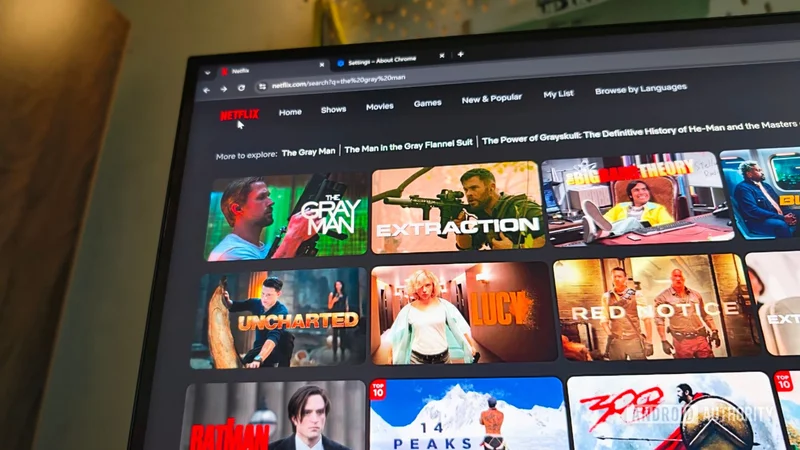
Obviously, I wasn’t going to play one episode, look at it for five minutes, and call it a day. I know myself way too well for that. If someone tells me I’m getting 4K, I need to know I’m actually getting 4K. So, I went all in. I watched Stranger Things, jumped over to Extraction, and then put on The Gray Man, checking the playback stats along the way just to make sure everything was working exactly as it should. And it was — every single time.
I can’t explain in words how satisfying that felt.
I can’t explain in words how satisfying that felt. Everything looked incredibly sharp on my 4K monitor. Once I knew the stats were backing up what my eyes were seeing, I could finally stop obsessing over the resolution and actually enjoy what I was watching.
What makes this feel so good is that my setup was never really the problem. My PC had more than enough power, my monitor was already capable of 4K, and I’d been paying for Netflix Premium all along. Chrome was the only thing getting in the way, since Netflix wouldn’t stream in 4K in the browser. With that barrier finally gone, I can open the browser I already use for practically everything, head straight to Netflix, and get the quality I’ve wanted all along.
Since setting it up, pretty much every Netflix-and-chill session on my Windows PC has happened inside Chrome. Browser-hopping had been getting on my nerves for so long that having it disappear from my routine feels incredibly satisfying.
So yes, I’m enjoying every bit of it, and hopefully, with everything you know now, you can get it working and enjoy those extra pixels too. I have only one request left for Netflix: please bring the same 4K love to Chrome on Mac. My MacBook is feeling very left out.