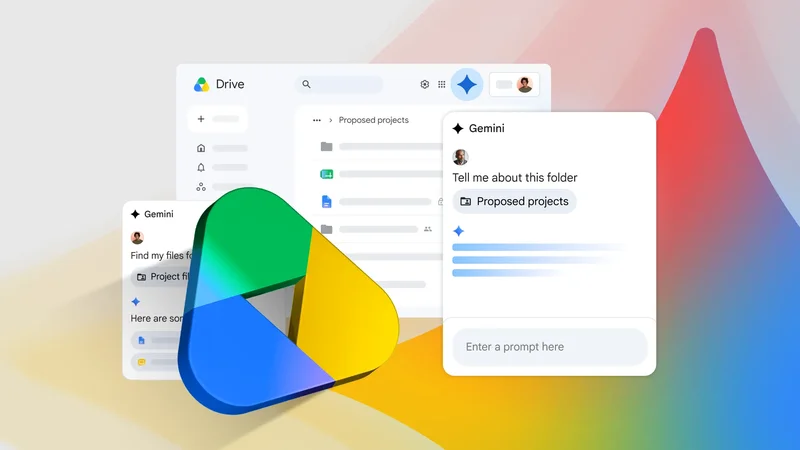
I've always used Google Drive to store files, but for years, that's all I thought it was. I'd upload something, file it away, and search for it when I needed it.
That changed when I discovered how much more Drive can do. I can now search using natural language, ask questions about files, summarize folders, compare documents, and use Gemini to help organize everything I've accumulated.
These are the Google Drive features I think deserve more attention.
I stopped searching for file names
I started describing what I wanted instead
I used to think I had to remember a file's name to find it in Google Drive. That became a problem when I knew what I was looking for but had no idea what I'd called it.
Now, I can describe what I remember.
With Gemini in Drive, I can use natural-language prompts to search for files based on their contents or context rather than an exact filename.
For example, instead of searching for a vague document name, I can ask Drive to find a presentation about a particular project or a PDF someone shared with me recently.
That feels much closer to how I remember things. I rarely remember that a file was called Project_Final_v2.pdf. I remember that it contained a budget, was shared with me last month, and had something to do with a particular project.
Many of the newer Gemini features discussed here require a Google AI subscription or an eligible Google Workspace plan.
I can turn a document into something I can listen to
Gemini turns my documents into audio
Some documents can be tedious to read, especially when they run for dozens of pages.
Google Drive's Gemini-powered audio overview gives me another option. I can turn a supported document into an AI-generated audio summary and listen to it instead of reading the whole file at once.
To try it, find the document in Google Drive on the web, click the three-dot menu icon beside it, and select Create an audio overview.
Gemini creates an audio discussion that highlights the key points from the document, which I can listen to while commuting, walking, or doing something else.
Audio overviews in Google Drive work with PDFs, Google Docs, Google Slides, Microsoft Word and PowerPoint files, plain-text files, and videos. The feature is currently available in English.
It's a convenient way to get familiar with a long document before deciding whether I need to read it from beginning to end.
I can ask what's inside a folder before opening everything
Gemini gives me the gist of a folder first
I've accumulated plenty of folders in Google Drive that I rarely revisit because I don't remember exactly what's inside them. Instead of opening files one by one, I can now ask Gemini for an overview of a folder.
Open Google Drive on the web, find the folder you want to explore, click the three-dot menu icon beside it, and select Ask Gemini.
Gemini can summarize the folder's contents and give you an overview of the files, so you can get the gist without opening them individually. You can then ask follow-up questions about the folder or specific files.
It saves me from the familiar routine of opening several documents to figure out which one contains the information I need.
I can compare information instead of opening files side by side
I stopped flipping between documents to find differences
I used to compare documents the slow way: open one file, open another, switch between tabs, and try to remember what changed. Gemini in Google Drive gives me a faster option when I'm working with multiple related files.
I can select relevant files as sources and ask Gemini to compare the information across them.
For example, I could ask it to compare two versions of a document, highlight differences between reports, or pull out conflicting details from several files.
Gemini can use multiple files as sources and synthesize the information into a single response.
To use it, I click Ask Gemini (sparkle icon) in Drive and type @file name to add the files I want it to use as sources. Then, I can ask a specific comparison question. I can also ask follow-up questions if I want Gemini to dig deeper.
I can turn my files into a Project
I stopped rebuilding the same context
If I'm working on something that involves the same group of documents, I can save them as a Project instead of repeatedly adding the same sources.
I can then return to the Project and continue asking Gemini questions using that same collection of files as its foundation.
To create one, open Google Drive on the web, click New > New Project, give it a name, and add the files, folders, or emails you want to use as sources.
I can also save an existing Gemini conversation as a Project.
It's especially beneficial for ongoing projects, allowing me to revisit them later without needing to establish the same context.
I can also share Projects with others while leaving the original files in their existing Drive locations.
Google Drive is more than a place to store files
I used to think of Google Drive as a place to dump files and forget about them until I needed them again. Now, I have found more reasons to use it.
From smarter search and folder summaries to Gemini's ability to compare files and turn documents into audio, Drive has become much more useful than I realized.
It turns a storage service into an assistant that can help me make sense of what I have already collected.