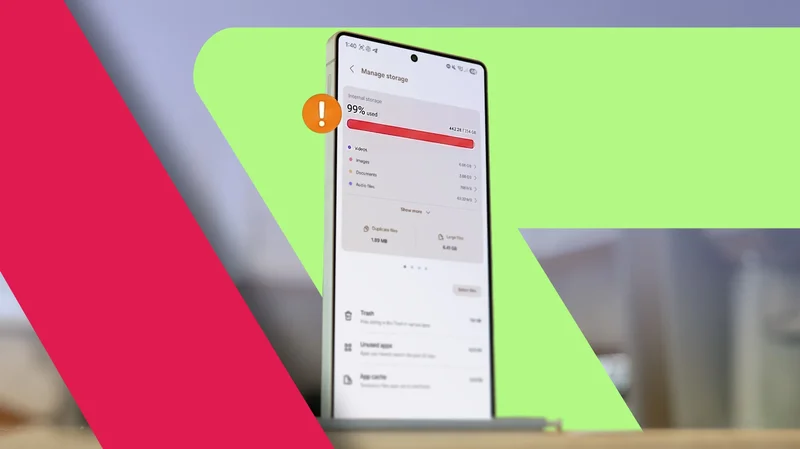
I subscribe to a higher-tier Google One plan that I share across my Android devices, including my trusty Samsung Galaxy Z Flip 7.
I rely on cloud storage to back up my photos and videos, though I still prefer to keep them locally whenever possible.
The trouble is, I started running into a wall with my Galaxy Flip 7 because I was stubbornly reluctant to purge my memories from its local storage.
With 256GB on board, I had consumed nearly half of my capacity in a few short months of heavy use. It made me worry that I'd face the dreaded "Full storage" alert before the end of the year.
Fortunately, I stumbled across a handful of software tweaks and hidden settings in One UI that reclaimed a massive chunk of space, all without sacrificing my precious photos and videos (well, mostly).
Know what's taking the bulk of your space
My gallery is creating duplicate copies of my photos and videos
The majority of my consumed space comes down to media, specifically video clips shot in 1080p at 60fps or 4K at 30fps. A few heavy clips can fill up local storage faster than water slipping through a colander.
On top of that, I edit a ton of media on my device. I've found myself doing this even more on the Galaxy Z Flip 7, thanks to its expansive suite of editing tools and noticeably tighter AI integrations compared to my Google Pixel 9 Pro XL.
However, this workflow is what secretly gobbles up my phone's capacity. Every time I edit a file, Samsung Gallery saves a pre-edit backup.
Depending on the media and edits I made, it can double the size of the same file.
While that isn't much of an issue for snapshots, it becomes a massive headache when you're tweaking heavy video clips. Over time, you accumulate gigabytes of redundant, unused original versions.
I decided to look into the Gallery and system menus, and I found a few clever features to cure my storage-full anxiety (before I lost my mind completely).
How to clear original versions of edited media
You get to select which items to keep
The primary fix for this clutter isn't actually baked into the Gallery app itself. Instead, it lives deep within One UI's system menus.
Head into the Device care menu, and you'll find a host of storage-saving utilities that offer smart suggestions rather than forcing you to blindly delete your media.
In my case, it identified about 3.8GB of "invisible backup" versions that I was not aware of. Continuing this step clears the unedited originals while preserving my final edits.
Strictly speaking, you are technically deleting old data here, but you retain the finished copies you want.
The only real caveat is that after you wipe these pre-edits, you can't restore an edited file to its original state.
To find this option, open Settings > Device care > Storage, and check under Suggestions for the clear pre-edits prompt.
You can wipe everything with a single tap or manually select items, which comes in handy if you need to keep both the original master file and the edited copy.
A classic storage tool for media
But it's effective
There is another trick, which leans on a classic style, that involves manually emptying your system trash.
The Samsung Gallery app keeps deleted photos and videos in a temporary trash bin for 30 days before permanently purging them.
Leaving this bin uncleared means those files continue to eat the storage until they are automatically purged.
Removing them manually reclaims that space consumed. Depending on how often you delete unwanted images and videos, clearing this can restore several gigabytes.
When I checked mine, I had nearly 2GB idling across my combined file and gallery bins. That is a generous amount to free up for hundreds of new photos and several clips.
It's easy to use since One UI gives Trash its own dedicated button inside the Storage management tool.
Open Storage management inside Device care, tap Trash, select Gallery or Files, and select the items to delete.
Relying on the cloud is another option
It's an aggressive way to restore the bulk of my storage
If you need to reclaim a massive chunk of space in one fell swoop, offloading media to Google One or OneDrive is your best bet.
OneDrive is deeply baked into Samsung's native Gallery (but that's ending in September), and depending on your account bonuses, you might have up to 40GB ready to use.
My setup nets me 30GB of free cloud storage space (15GB from Samsung and 15GB via Microsoft), which gives me a lot of space for media and general files.
Much like Google Photos, Samsung Gallery lets you use the Free up space feature to remove locally stored copies of items that have been synced to the cloud.
You still retain the option to download these photos and videos to local memory whenever you need them.
The main catch is that browsing your gallery feels noticeably sluggish afterward, as larger video files must be streamed or downloaded on the fly.
Still, if you need to restore the bulk of your local storage without nuking your library, this remains a top-tier option.
Put apps in the archive
My personal information is saved
There's another classic Android trick that reclaims space without touching your precious library: app archiving.
Archiving is equivalent to deep freeze for apps you rarely touch. It deletes the app's core components while preserving your app data and settings.
When you need to reinstall the app later, you can retain where you left off since your accounts, passwords, and settings are retained.
A single archiving process for apps I rarely use freed up roughly 5GB of space.
However, tapping Select all when prompted will uninstall your apps rather than archive them. Instead, you can pick the default suggested apps list to stay safe.
I set this to run every month or two, which also serves as a great way to keep tabs on what software I need to uninstall.
When archiving apps, select the default list to avoid uninstalling them. You can reinstall them later and continue where you left off.
Proactive measures to save space long-term
Beyond manual decluttering, adopting a few proactive steps can be efficient in saving storage too. So, instead of going into each setting later, you can save space while using your device.
A couple of them include adjustments in the camera settings.
First is using High efficiency formats — HEIF for photos and HEVC for videos. These formats save a modest amount of space on individual shots, but over time, that savings add up significantly.
On most Samsung Galaxy phones, the toggle for HEIF is found in the camera settings inside the Photos section.
Another camera tweak I use is turning off Motion photos. Disabling this mode gives you only a static photo instead of adding a second or a beat of pre-captured video.
Similarly, the storage savings will be noticeable in the long-run.
With that, you can mix up these system tweaks and toggles that work best for you. While some offer modest free storage, they are still useful in this unexpected memory crisis.