Most people never think about the monitor they use. But not you. If you work from home as I do, your monitor is your window into your trade, whether that's scrolling through endless spreadsheets or color grading short films. Different work has different needs, and finding the monitor that suits your specific use case can be tricky with all the options out there.
But with over a decade of testing and reviewing monitors under my belt, here are my recommendations on what you should buy today.
For more information, check out our guide to How to Choose a Monitor, as well as our recommendations for Best Gaming Monitors, Best Portable Monitors, and Best Cheap Monitors.
- The Best Monitors for Your Home Office
- Cheap Monitors That Are Actually Good
- Faster, Smarter, and More Extreme
- What Monitor Size Is Best?
- What Should You Look for in a Monitor?
- Should You Worry About Burn-In on OLED Monitors?
- What Do You Need to Set Up Your Monitor?
- How Does WIRED Test Monitors?
- Can You Use a TV As a Monitor?
- How Do You Set Up Dual Monitors?
The Best Monitors for Your Home Office
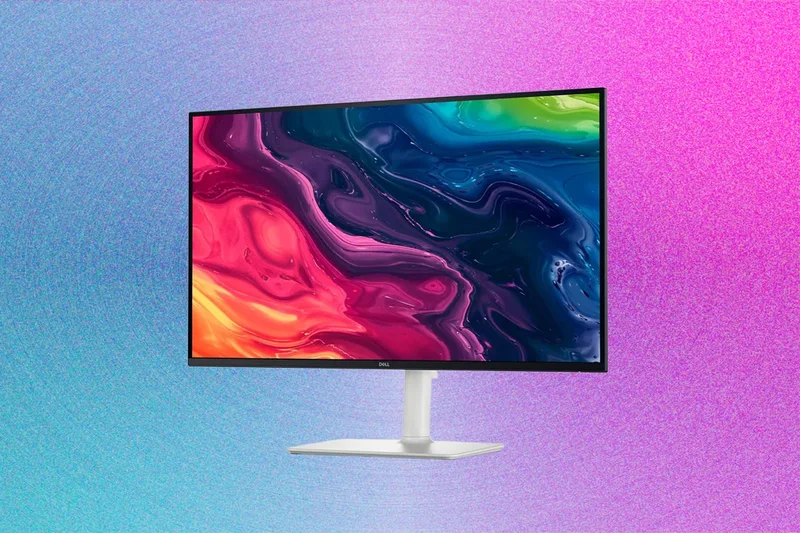
It's worth spending more than a hundred bucks on your monitor. Whether it's to improve image quality, upgrade sharpness through higher resolutions, or to add extra ports, you'll want something that makes your daily work life more pleasant. That's why I recommend the Dell 27 Plus 4K as the monitor most people should buy. Unlike many 4K monitors, the Dell 27 Plus 4K sells for under $300 (oftentimes as low as $280), despite being quite bright and color-accurate for an IPS panel at this price. It even comes with a fast 120-Hz refresh rate. I like this feature, especially since higher refresh rates are becoming more commonplace on phone and laptop screens.
The only real downside to the Dell 27 Plus 4K is that the port selection is woefully limited. The two HDMI ports and one DisplayPort are enough for the basics, but if you have a laptop without HDMI, like a MacBook Air, you'll need a USB Hub or laptop docking station. For a more versatile monitor, I'd recommend upgrading to the model with a built-in USB hub (S2725QC). The QC model is identical, except that its extra USB ports make this monitor a far better fit for a connected home office. Dell does charge you $50 more for those ports, but for some, it'll be worth the convenience. Either way, you'll be hard-pressed to find a cheaper 4K monitor of this quality or a better monitor for under $300.
If you are looking for a larger, more fully featured home office monitor meant to sit at the center of a workstation, I'd recommend the Dell UltraSharp 32 4K (U3225Q). This thing is a beast. It's got just about every port and feature you can imagine, including a Thunderbolt-compatible USB-C port with power delivery up to 140 watts, an Ethernet jack, and a built-in KVM switch. This fully eliminates the need for a separate laptop docking station. Beyond that, it delivers on image quality in a big way. It uses IPS Black for enhanced color accuracy and contrast, and at the time of testing, it had the best image quality of any IPS display I'd tested.
It's not OLED, but the 120-Hz UltraSharp U3225Q is impressively bright in SDR, maxing out at well over 400 nits in my testing. You're paying a lot for the extra functionality and image quality, so make sure you actually need it before pulling the trigger on this over the 27-inch model.
There are plenty of 32-inch monitors out there if extra size is all you're looking for. Just remember, at 32 inches, anything under 4K isn't going to look sharp. But even 4K doesn't come close to the sharpness of something like a MacBook Pro. That's where the BenQ 27-inch 5K (MA270S) enters the picture. The combination of the 27-inch monitor and the 5K resolution (5120 x 2880) makes for one incredibly sharp display.
This BenQ monitor doesn't just match the MacBook Pro in pixel density. Using a device sync mode, it's designed specifically to be paired with a MacBook in terms of how the colors appear. Even some of the most expensive, high-end monitors designed for creators using Macs don't have that exact color match in how they're calibrated. BenQ has been refining this for years, and they have it nailed. It's all handled by software, which even lets you control the monitor's speaker volume right from your keyboard. I wish it could also control brightness, though.
But what's important is that when lined up next to a MacBook Pro, the colors are a perfect match. You can also use the sRGB color mode, which is how you get better color accuracy. That's what makes it such an incredibly powerful alternative to Apple's own Studio Display. While the Studio Display has fuller speakers and a slimmer design, it's certainly not worth the extra $500 in my mind. There's even a “nano gloss” texture option to match the Studio Display, which I'd recommend, as the glossy version I tested was highly reflective.
This isn't the only BenQ monitor made to match with Macs. The company also has the 27-inch 4K (MA270U), which gets you similar features with fewer pixels, but costs quite a bit less.
Cheap Monitors That Are Actually Good
I consider a budget monitor to be anything under $200, and you'll find dozens and dozens of these hanging out at Amazon or Best Buy. But many are old. Many have poor colors. It's trickier to find some newer models that are actually worth the money. I wasn't surprised to see that the Dell 27 Plus ranked among the very highest in my testing. It only costs $150, but it delivers really strong 1080p performance in terms of colors and brightness.
The most surprising feature of this monitor is its 144-Hz refresh rate. The smooth motion really gives the monitor the premium feel that monitors at this price lack, and it also comes with all the same adjustability features and an integrated VESA mount on the back. Put this on your desk, and aside from the resolution, you'll never think of it as a “budget” monitor.
But maybe you want to keep things even cheaper. No problem. While a monitor under $100 is going to have some flaws, I found a decent one in the MSI Pro MP243W E14. It stands out in the thing that matters most: image quality. I measured 359 nits at its brightest, and the color coverage is surprisingly good, both in terms of saturation and accuracy. It even has a 144-Hz refresh rate, which means it can double as a cheap gaming monitor when it needs to. I also like the design, which offers thin bezels around the display and an all-white exterior. Its flaws, however, include the lack of ports and adjustments. It can only tilt slightly. It's only 24 inches, which will likely feel small for most people.
I was also really surprised by the upgraded version of this monitor, the MP273QW E14. Rather than being stuck at 1080p, this model gives you a sharper image with a resolution of 2560 x 1440. While it has the same lack of adjustment, it is a more standard 27-inch size and delivers even better overall image quality.
Faster, Smarter, and More Extreme
This monitor is one of the favorites I've tested in the past couple of years. It was among the first QD-OLED monitors designed for content creation and entertainment. While there are a couple of options out there today from companies like Asus, the Dell 32 Plus 4K opens up the brilliant image quality of OLED to an entirely new audience. One reason high-quality HDR video is scarce is the lack of affordable screens to watch and edit it on. With this monitor out in the world, though, there's no excuse. It even has a 120-Hz refresh rate and plenty of ports. The combination of OLED's fast response time and the faster refresh rate makes this a solid gaming monitor in your off hours. I haven't included gaming monitors in this guide, primarily because they're an entirely different beast. Check our recommendations of the Best Gaming Monitors for some recommendations on that front.
But if you're really serious about creating professional, HDR video, there's still nothing else on the market quite like the Studio Display XDR. We all waited a long time for Apple to revisit the Studio Display, and while the monitor we eventually got was a bit less ambitious in scope than we all hoped, this 27-inch 5K Mini-LED monitor is the new king in HDR performance. It has 2,304 dimming zones, and according to my testing, it could do 1,905 peak HDR brightness in a 25-percent window. Compare that to, for example, the Dell 32 Plus 4K, which tops out at 946 nits in just a one-percent window. The difference in perceived brightness, detail, and contrast is huge, which is useful first and foremost for content creation. However, because it's been dropped from 32 inches to 27 inches, it's left a gap in the market for larger displays that don't lose sharpness. That's where the LG UltraFine Evo 6K monitor comes into play.
It just so happens to deliver a pixel density of 224 pixels per inch, making it the sharpest big-screen display I've ever tested. What I love about this LG monitor is that it's far more than just a bunch of pixels. It's one of the most beautiful monitors I've tested, sporting a gorgeous stand and base that definitely shares some resemblance with the Apple Studio Display. And like that monitor, the UltraFine 6K has a monster pair of built-in speakers that are crystal clear.
Unlike most monitors on this list, you won't need to buy a set of computer speakers. It's not a perfect monitor, though. The ports are in a hard-to-reach location, and while the stand is fun to admire, it has a couple of limitations. The lack of cable management is an eyesore, and it doesn't have as much height adjustment as I'd like. The monitor is also limited to just a 60-Hz refresh rate.
There's also the issue of price. It originally retailed at $2,000, which was painful, especially compared to the Asus ProArt 6K (PA32QCV), which is the only other 6K monitor on the market right now. These days, the price difference is down to just a couple hundred bucks. These monitors go toe-to-toe in image quality, though I prefer the LG model for its design, better speakers, and more powerful ports, while the ProArt 6K offers a longer, three-year warranty at a lower price. Regardless of which you choose, you're getting the sharpest 32-inch monitor possible. Beyond that, though, these are both solid options.
Lastly, I really enjoyed dipping my toe into the world of smart monitors. If you want a monitor that can just as easily double as a television, Samsung and LG both lead the way. I've tested out two Samsung smart monitors recently that have successfully expanded my idea of what monitors can do. My favorite of the bunch is the Samsung 32 M9 Smart Monitor. It's an OLED 4K monitor that is a rare display that's equally good for working, gaming, and watching movies. It's controlled with a remote, and Samsung throws in tons of goodies like free live TV channels to sweeten the deal. It can also be used with a gaming console, thanks to the HDMI 2.1 port. All that flexibility is great, but what really sets the M9 model apart is the OLED screen. Thanks to the fantastic image quality, it finally feels like a smart monitor that doesn't compromise that full TV experience.
For a bit of extra fun, I even tested out the non-OLED version of this monitor with Samsung's Movingstyle Rolling Monitor Stand. It's incredibly niche, but for the right home, being able to roll out a proper TV when you need it is handy. I love the idea of having a TV that is mobile rather than a permanent piece of hardware, and the Movingstyle rolling stand is a pretty compelling solution.
What Monitor Size Is Best?
Size is often the first and most important decision when buying a monitor. The following are the most common sizes you'll come across, always measured diagonally across the screen. I've ordered them from most common to least, and included different aspect ratios and resolutions that are often used at that size.
24 inches: This smaller size has become less popular over the years, but it's a good option if you're looking to save money, squeeze a monitor onto a smaller desk, or are a professional esports gamer.
27 inches: This size has become the standard, offering enough screen size without overtaking your desk or stretching out the pixels too much at 1080p. If you're unsure of what to get, start here.
32 inches: The next most popular size, giving you that bit of extra screen real estate for multitasking. You'll just want to make sure your monitor has at least a 1440p resolution to keep the pixel density high enough. If 32 inches isn't big enough, there are even 40-inch or 43-inch monitors in the conventional 16:9 aspect ratio, though you'll really want to make sure you have a big enough desk for one of these.
34 inches: Curved, ultrawide monitors with a 21:9 aspect ratio and 34-inch screen size used to be odd, but these days, they've become an alternative to using two 27-inch screens.
There are other outliers, such as the absurd 49-inch, 32:9 behemoths known as “super ultrawide” monitors, or 16-inch portable monitors meant to pair with your laptop.
What Should You Look for in a Monitor?
Once you've decided on a size, there are a number of other important aspects of your next monitor to consider. Some of these factors may matter more for certain uses—for example, gamers generally care more about higher frame rates than office workers do—but they're all handy to know going in.
Resolution: The bigger the monitor, the more it will benefit from higher resolutions. That will allow you to have app windows that take up less space but are still legible. Most monitors today are typically 1080p (1920 x 1080), 1440p (2560 x 1440), 4K (3840 x 2160), or 5K (5120 x 2160). There are even some new 6K monitors out there with a resolution of 6144 x 3456.
Refresh rate: This refers to how many times the display can refresh the picture per second, measured in hertz (or Hz). A higher refresh rate makes all movement and animation look smoother because you're seeing more information. For productivity, 60 Hz is probably enough, but gamers will generally want a panel that can at least hit 120 or 144 Hz. 240 Hz has become the new standard for high-end gaming monitors, but there are now extreme models that go up to 500 Hz and beyond. You'll need a powerful enough computer that can maintain a high frame rate to take advantage of these high refresh rates, and you usually have to enable this feature in your operating system's display settings.
Panel type: Monitors usually use an LCD (liquid-crystal display) panel. Three of the most popular options—twisted nematic (TN), vertical alignment (VA), and in-plane switching (IPS)—are different types of LCD panels, and all use TFT (thin-film transistor) technology. Each is popular for different reasons: IPS for color, VA for contrast, and TN for speed with higher refresh rates and response times. IPS has become especially popular thanks to its increasing refresh rate speeds. Mini-LED uses a more advanced backlighting solution that employs a number of lighting zones to more accurately and efficiently control pixels. These tend to be the brightest monitors you can buy. OLED (organic light-emitting diode) panels take that even further, allowing the monitor to control individual pixels, including turning them off entirely to create extreme contrast. These are becoming highly popular in gaming monitors, in particular. You should think about what's most important to you (great color? thin form factor? max brightness?) to choose the best panel type for your needs.
Nvidia G-Sync/AMD FreeSync support: A gamer-specific criterion, these two features let monitors adjust their frame rates based on the games they're playing. This reduces screen tearing without affecting performance. G-Sync is made by Nvidia and FreeSync comes from AMD, and while FreeSync monitors can usually work with most modern Nvidia graphics cards, G-Sync doesn't work with AMD cards, so make sure everything you have is compatible when buying.
HDR support: This isn't crucial for productivity, but if you watch a lot of media or play games, it's increasingly nice to have. Just like on TVs, HDR dramatically expands the range of colors a screen can reproduce, as well as leading to more vivid pictures. But you have to be careful, as many monitors will claim to have HDR; displays need to have extremely high contrast and be very bright to create the HDR effect strong enough to notice. The DisplayHDR 400 certification, for example, means the display only goes up to 400 nits. That's not bright enough to create any meaningful sense of HDR. In almost all cases, the display needs to use Mini-LED or OLED. Mini-LED can get very bright, well over 1,000 nits in HDR. The catch is that you need to ensure it has enough dimming zones, preferably over 2,000; a few hundred dimming zones won't do. OLED doesn't tend to get as bright as Mini-LED, but OLED has the benefit of each pixel being individually lit, which dramatically increases contrast. They still need to get bright, though, preferably up to at least 1,000 nits in HDR.
Port availability: A crucial but easy-to-overlook factor is what kind of ports the monitor has for connecting your devices. Most typically come with one or two HDMI inputs and a DisplayPort input, which will cover most needs, but it's always a good idea to check what your setup requires. More expensive monitors can function as USB hubs, letting you connect all your peripherals and accessories directly to your monitor. Conversely, check out our Best USB Hubs guide if you need to expand your computer's port options without paying for a more expensive monitor.
Built-in KVM switch: A KVM (Keyboard, Video, Mouse) switch is a device that helps you easily switch your monitor, keyboard, and mouse between two different computers or source inputs (like a gaming console). If you have one monitor setup for both a work and a personal computer, or a computer and a gaming console, having a KVM switch built into the monitor means you can easily shift peripherals between your two devices without needing an external KVM switch.
Should You Worry About Burn-In on OLED Monitors?
Probably not. You'll see a few OLED monitors on the list here, and that's for good reason. They're the best monitors you can buy, and they're increasingly affordable. It's pretty incredible how quickly they've dropped in price.
But burn-in was always the biggest concern with the technology. After all, it's an inherent flaw with the panels, and it can't be erased once the damage is done. While it's still possible to see burn-in on your monitor over many years, it's just not as much of a justifiable fear as it used to be. Modern OLED panels are significantly better at reducing burn-in, and the latest year-long testing results are pretty promising. On top of that, most OLED monitor manufacturers now offer software to protect against damage and three-year warranties that include burn-in protection.
What Do You Need to Set Up Your Monitor?
Once you've picked out the best monitor, you'll need a way to set it up on your workstation. Most models come completely assembled or require you to connect the base to the stand and the stand to the back of the screen.
Monitor stands: Most monitors come with a stand (and sometimes a separate base), and the flexibility of these stands can go a long way toward reducing neck strain and/or back pain. Ideal stands let you adjust the height, tilt, and rotation of a screen so you can position it exactly where you need it. Higher-end models can even adjust orientation from landscape to portrait. If your monitor doesn't come with a height-adjustable stand, you may want to consider a monitor shelf, which elevates the screen to a more ergonomically sound height.
Mounting brackets: If you're using multiple monitors, connecting them to monitor arms is a good solution. Monitor arms clamp to the side of your desk and free up lots of space that would otherwise be taken up by stands. However, the type of mount the display uses is crucial. Most monitors and monitor arms use the VESA standard, though you'll want to double-check. You should examine the size and type of mount on the equipment you have before buying anything new.
Ports and cables: Once you have your monitor set up, you'll need to connect it to your desktop or laptop using one of the available ports. If your computer has an HDMI port, it's as easy as using the HDMI cable that came with the monitor and connecting it to the back of the display. If your monitor has USB-C, that's also a good option, especially if your laptop doesn't have HDMI anyway; a nice perk is if it can provide ample wattage to power the computer (USB Power Delivery, or PD). And lastly, you'll often get the fastest refresh rates if you use DisplayPort and hook it directly into your desktop's graphics card.
Speakers: A lot of monitors come with built-in speakers, but I wouldn't put much stock into them. They usually sound poor and don't get very loud. You're much better off getting a dedicated set of desk speakers. Check out our Best Computer Speakers guide.
How Does WIRED Test Monitors?
We never recommend products we haven't tested, so we get these monitors in and set them up on our desks at home. We integrate them into our workspaces and get a feel for what it's like to use them. That means we consider the ease of setup, adjustability, design, ports, and on-screen display (menu system).
But you can't talk about the quality of a monitor without testing the quality of the panel. So, using a colorimeter, we test and report on the brightness, contrast, color saturation, and color accuracy. We compare that data to how other products we've tested, across different prices and use cases. That testing is especially important for displays that are designed to be used for specific tasks, such as content creation or gaming.
Our goal is to give our readers the best possible monitor recommendations, and to do that honestly, we have to test a lot of different displays. We're constantly getting in the latest and greatest displays to test—directly from the biggest monitor manufacturers in the world. Like many of the other products we test, these products are most often offered to us as review units with no promise of positive coverage. We do not prioritize products from companies that send us products to test. Though most of the products listed above were provided for review by the manufacturers, there are some exceptions in which products were purchased for personal use, which are noted.
Beyond that, I try to test monitors throughout the price spectrum and from as many different brands as possible.
Can You Use a TV As a Monitor?
Yes. Since TVs have HDMI ports, you can connect a laptop or PC directly to a television without a problem. In a pinch, it's a decent solution if you don't have a monitor. As TVs have increasingly become more similar to PC monitors, there's less and less of a problem with using them interchangeably.
However, there are lots of reasons why people don't typically do this. The size of televisions is a problem for desk use. You probably wouldn't want to put anything larger than a 43-inch display on your desk for practical reasons, but even at that size, the pixel density can be a problem. If you're at a desk, you're likely sitting much closer to the screen than you would be in a living room, and you'll really notice those pixels when doing computer work, even if the TV is 4K. There are other concerns if you plan on playing games on your TV, such as the refresh rate or input delay.
How Do You Set Up Dual Monitors?
The simplest way to connect two monitors to your laptop or PC is to use different ports and cables for each device. For example, you could connect your desktop PC to one display via HDMI and another via DisplayPort to the graphics card. It can be trickier with a laptop, which may not have all the ports you need to connect two displays. Some monitors and laptops have USB-C, allowing for an additional one to be connected. But some laptops, like the M1, M2, or M3 MacBook Air, can only support one external display on their own.
Fortunately, if your laptop doesn't have support for more displays, you can use a laptop docking station. The other option is to daisy chain them together using USB-C that supports at least Thunderbolt 3 (which includes Thunderbolt 4 or Thunderbolt 5) for both the laptop and the monitor. This lets you connect to two displays through just one cable coming out of your laptop. Make sure you use a USB-C cable that supports Thunderbolt.
Power up with unlimited access to WIRED.Get best-in-class reporting and exclusive subscriber content that's too important to ignore. Subscribe Today.