Most developers are now working alongside agents, or are at least familiar with how to do so. Agents help you explore ideas and turn them into action, from planning projects to automating workflows. Oftentimes, a conversation is all you need to move your work forward.
But what about tasks that don’t quite fit the conversation mold?
Some tasks are easier when you can see and interact with the information. You may need to triage a backlog, visualize complex information, or bring information together from multiple sources. A visual interface makes it easier to understand patterns, spot connections, and take action.
Instead of working through a long chain of prompts and responses, you can use canvases to interact directly with the information in front of you.
Working with canvases
These shared, interactive surfaces are extensions of the Copilot app called canvases. A canvas is an interface in the GitHub Copilot app where developers and agents can collaborate in real time. These shared, interactive surfaces are called canvas extensions.
The agent can update the canvas as it works, and you can interact with that same workspace through clicks, edits, and other actions. Your interactions can be sent back to the agents or processed locally by the canvas.
You can continuously shape the experience by asking Copilot to iterate on your canvas—adding new functionality, refining existing features, and more. The canvas can evolve alongside your work.
To create a canvas, use /create-canvas in your agent session in the GitHub Copilot app, then describe what you want it to create and what capabilities it should be able to support.
Because canvases are generated from a prompt and evolve alongside your workflow, they can take many forms. Some help you visualize information, some help you take action, others provide a more entertaining way to tackle your backlog.
Here’s some examples of what’s possible with canvas extensions:
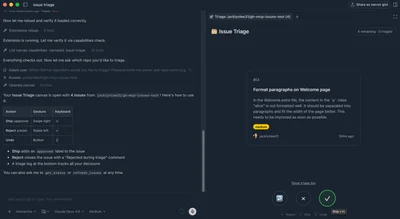
Issue triage helper
Goal: Quickly triage GitHub Issues in a fast, visual way.
Prompt: /create-canvas Create an interface that allows me to easily swipe through issues in a repo in card format. Can swipe right to ship, left to reject.
Result: The canvas shows a card-based interface where each issue is surfaced one at a time. You can take action directly from the UI. As you swipe, the canvas updates in real time, tracking decisions and moving the items into the appropriate buckets.
Interactive codebase diagram
Goal: Visualize how a project is structured and how its components relate to each other.
Prompt: /create-canvas Render a colorful, interactive diagram showing how the code in this project is working together, show how things are related, etc.
Result: The canvas generates a dynamic diagram of the codebase where each node represents a different part of the system. You can hover, drag, and filter to explore the different layers. You can interact with the architecture directly, turning a static understanding of a codebase into something you can actively explore.
Sessions worktree view
Goal: Visualize all active GitHub Copilot app sessions and their associated git worktrees, clearly indicating which are active and which are stale, with the ability to easily clean things up where needed.
Prompt: /create-canvas Create a worktree view that will help me see all of my current sessions and whether or not they are active or orphaned. Allow me to clean them up with a few clicks where needed
Result: The canvas generates a visual showing my worktrees with clear indication of what is active and what is currently stale or orphaned. I can clean up stale worktrees with the click of a button.
Agent prompt coach
Goal: Improve prompt quality by reviewing past interactions and suggesting clearer, more effective ways to work with agents.
Prompt: /create-canvas Create an interactive prompt coach that suggests to you how you could have improved your previous prompts in your sessions with skills, mcp servers, etc. Make note of any spelling errors, syntax errors, etc.
Result: The canvas shows a list of previous prompts and analyzes each one, suggesting improvements such as missing context, spelling issues, and more. You can use these tips to refine your future prompts, improve clarity, and get more consistent results from the agent.
Knowledge finder
Goal: Find people who have context on a specific file or topic by searching across Slack, Teams, email, and documentation.
Prompt: /create-canvas Create a way that I can search across Slack, Teams, Email and docs to find people with knowledge of a specific file or someone that would have more context.
Result: Based on the search, the canvas looks across multiple tools and surfaces the people that are most connected to a given file or subject. It highlights who the person is, and where the connection was found. This allows you to quickly understand someone’s connection to a topic and make it easier to reach out for more information.
Take this with you
These examples only scratch the surface of what you can do with canvases. Canvases can turn AI from a conversational tool into a place where you can visualize information, explore different workflows, and turn boring tasks into fun experiences that you’ll actually want to complete.
Canvases are a fun, shared workspace where you and the agent can think, explore, and take action together.
Want to try out canvas extensions? You can get started in the GitHub Copilot app. Read the docs for more information >
Written by
Jacklyn Lee is a Content Writer at GitHub and a former technical writer with a love for good storytelling.