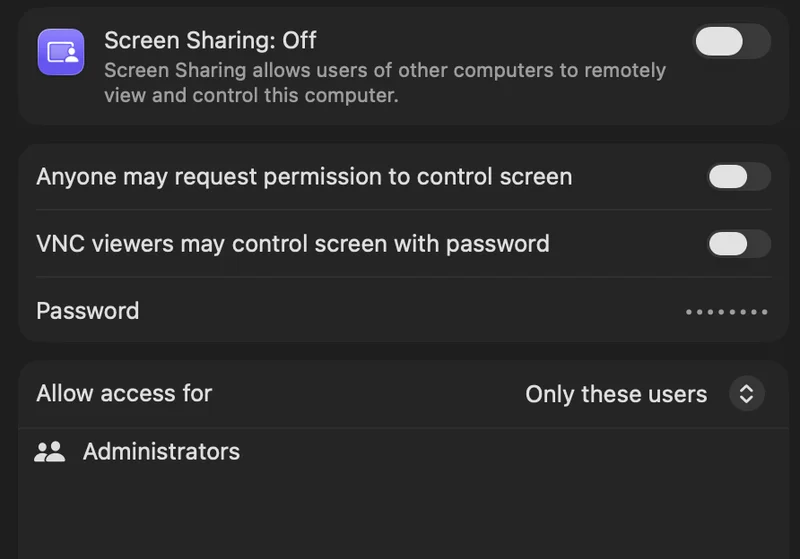
About 20 years ago, with macOS 10.5 (Leopard), Apple introduced screen sharing. Apple did not invent a new protocol for screen sharing. Instead, it used the established VNC protocol. VNC is a pretty simple, unencrypted protocol using TCP port 5900. Historically, the protocol used a simple global password for authentication. Apple adapted the protocol for its own use, but overall, left the VNC protocol itself alone.
A couple of weeks ago, two severe vulnerabilities exposed issues Apple introduced when it bolted on its own modifications to VNC. Currently, these vulnerabilities are being exploited, and a system with screen sharing exposed should be considered compromised. But here are some tips to improve screen sharing security.
One weakness exposed by these recent vulnerabilities is Apple's support for both "regular" VNC authentication and authentication via Apple's own macOS authentication system.
Apple does allow old-fashioned VNC authentication by defining a VNC password. If this authentication scheme is used, a VNC client is prompted only for a password, not a username. The client may then ask for permission to use the screen, or they will be presented with an OS login prompt. This can be useful if you are trying to provide remote support to a logged-in user. But it does provide access to the system without any strong authentication. Access should still be secured by local user credentials, but the process already runs with elevated privileges to allow access for any user who logs in. This contributed to a recent vulnerability.
Next, you can restrict which users can remotely access the system. This should be restricted to allow only users who need remote access to connect.
Access to screen sharing can also be controlled via macOS's built-in firewall. But the settings are not always clear. Just enabling the firewall is not sufficient.
If "Automatically allow built-in software" is enabled, the firewall will allow access to screen sharing. The same is true for "Automatically allow downloaded signed software". Even if "stealth mode" is enabled, screen sharing is still available. You may also select "Block all incoming connections", which will block everything, even applications you approved in the past.
Here are a few command-line tips to secure the system (this is for macOS 26; prior versions use slightly different syntax)
# use this to check the current firewall state
/usr/libexec/ApplicationFirewall/socketfilterfw --getglobalstate
turn firewall on
sudo /usr/libexec/ApplicationFirewall/socketfilterfw --setglobalstate on
turn stealth mode on to not respond to pings
sudo /usr/libexec/ApplicationFirewall/socketfilterfw --setstealthmode on
do not allow signed binaries
sudo /usr/libexec/ApplicationFirewall/socketfilterfw --setallowsigned off
disable filesharing
sudo launchctl disable system/com.apple.smbd
disable screensharing
sudo launchctl disable system/com.apple.screensharing
A script like this is handy if you need to switch from your internal network to a public one. VNC access should always happen via a VPN. SSH forwarding works well with VNC. Other solutions, like Tailscale, are easy to use if you need VNC for remote support.
--
Johannes B. Ullrich, Ph.D. , Dean of Research, SANS.edu
Twitter|