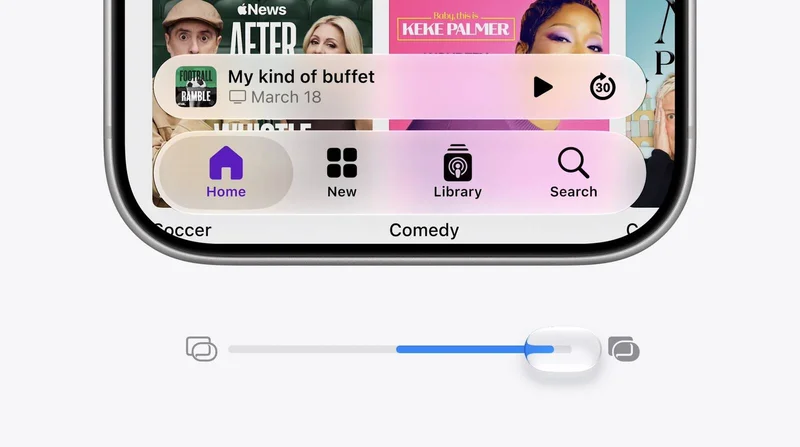
If you've never been a fan of Liquid Glass – Apple's glass-like interface effect introduced in iOS 26 – then there's some good news in iOS 27. Apple has added a setting that lets you finely adjust the level of translucency, giving you more control over the look and feel of your iPhone.
Perhaps you find notifications too see-through, or you want to see more of your wallpaper through Control Center. Fortunately, iOS 27 includes a dial that can help with that. Apple has swapped the two-option Clear and Tinted setting for a continuous slider that puts translucency anywhere between barely-there glass and a heavy frost.
The earlier presets arrived in iOS 26.1 and gave you two positions on a spectrum, whereas iOS 27 gives you the whole spectrum. It also locates the control in "Appearance" – a new section in Settings that gathers up interface options previously scattered through Display & Brightness, including Light and Dark mode and text size.
Not only that, Apple has also tweaked the default look, and says that Liquid Glass now diffuses complex content behind it more effectively while drawing a clearer separation between layers.
How to Change the Liquid Glass Effect
When you first install iOS 27, you'll be presented with the slider to change the Liquid Glass effect, but it's good to know how to get to it later if you want to switch up the look.
- Open Settingson your iPhone.
- Tap Appearance.
- Tap Liquid Glass.
- Drag the slider left for a clearer, more transparent effect, or right to add tint and opacity.
The midpoint on the slider is Apple's default. The UI preview redraws in real time as you drag it, so you can watch it instead of having to back out of Settings to check. Note that the setting applies across the system, and affects everything from Control Center and Home screen folders to app overlays and Lock Screen notifications.
If the Slider Doesn't Go Far Enough
Even at the tinted end, Apple's interface retains a degree of glassiness. If you're not satisfied with the result, two Accessibility options push it further:
- Reduce Transparencystrips out nearly all translucency, leaving only flat, solid backgrounds.
- Increase Contrastsharpens the boundaries between buttons, text, and whatever sits behind them.
You can find both in Settings ➝ Accessibility ➝ Display & Text Size.
You'll find that iPadOS 27 also offers these controls in the same place, and the same goes for macOS 27 Golden Gate (albeit in System Settings). All three software updates are in public beta now, with a general release expected in September.