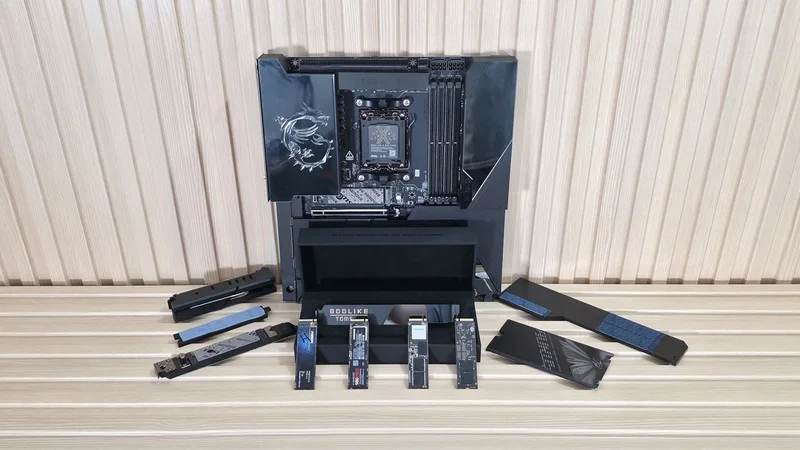
M.2-based SSDs have been around for about a decade now in PCs, and have all but replaced the much larger and notably slower 3.5-inch hard drives, and even 2.5-inch drives, both spinners and SSDs. Over that time, we’ve seen these tiny drives increase not only in capacity but also in speed as new flash, controllers, and PCIe generations release. And with that increase in performance comes increased heat that you need to manage. This is especially true when using the latest-generation PCIe 5.0-based drives, which tend to run hotter than previous-generation drives and are more prone to thermal throttling and performance loss.
Many of these drives already come with heatsinks to help manage thermal output. And so long as it isn’t a simple thin plate, many do the job well enough to either delay or prevent thermal throttling.
However, not all include heatsinks, and if your workflows lean on storage, longer transfers can be significantly slower due to the drive overheating and thermal throttling. The amount of throttling, if any at all (some actually won’t), varies by circumstance. Whether by drive and controller, workload, and even case airflow, these factors affect whether you’ll see thermal throttling and how severe it is. If time is money, this is obviously a bad thing. The longer it takes to read or write the files you need, the longer it takes to finish your work and get out to something more pleasurable, or move on to the next task.
You may be thinking: My motherboard has heatsinks for M.2 drives, and of course, if you aren’t using a bargain-basement or business board, you would be right. Those also come in all shapes and sizes (plate-style to massive), with varying cooling capabilities. In general, the more mass a cooler has and the greater its surface area, the better it can cool. There are other variables, including thermal pad efficiency, chassis airflow, and of course physical contact, but at a high level, this is the way.
But we wondered if these motherboard heatsinks actually make good contact to whisk away the heat? After seeing seemingly random complaints online in forums and on Reddit over the years, we tested the primary M.2 heatsink from the top PCIe 5.0 M.2 socket on 20 different motherboards to see how many actually make good contact with the included heatsink. And I was honestly a bit surprised at what we found.
What thermal throttling looks like and M.2 contact is so difficult
So what does thermal throttling look like on M.2 drives? It’s a sudden, typically severe, drop in data transfer speeds, appearing as a sharp cliff where blazing-fast speeds plummet to a fraction of the drive’s rated performance, or a saw-tooth pattern where it drops, cools below the critical temperature thresholds (typically by reducing the duty cycle and capping the IO stream and data bandwidth), then jumps back up. Some drives even drop back to PCIe 4.0 to limit bandwidth and reduce thermal throttling.
As you can see from the charts below (which contain throttled and non-throttled results from the same drive), the heatsink-less Transcend 260S 2TB PCIe 5.0 SSD we used for this testing throttled just after the 50-second mark, dropping from just under 4,000 MB/s to around 1,700 MB/s. It then briefly recovered after dropping below its critical temperature threshold (typically between 70 and 85 degrees Celsius) around 90 seconds into the transfer. Several seconds later, it dropped again, and minutes later it dropped again, this time slowing performance even further to around 600 MB/s, over six times slower than its steady-state performance and much closer to SATA-based SSDs than PCIe 5.0.
Get Tom's Hardware's best news and in-depth reviews, straight to your inbox.
That said, it takes a pretty big file/set of files to transfer for over 10 minutes on these speedy drives, so we don’t expect to see this behavior too often during mainstream workflows. Also, how much performance is lost varies by drive and conditions. But this gives you a great idea of just how much performance you can lose.
You’d think that designing a heatsink for cooling hardware the size of a stick of gum would be easy for engineering teams. However, it’s not as cut-and-dry as you may imagine. The reason is that the M.2 standard (governed by the PCI-SIG) lists only maximum Z-heights for single and double-sided drives, leaving board partners to decide, for example, how thick the thermal pad should be. And while thermal pads work better with some compression, too much reduces efficiency, so there is a Goldilocks zone, but one that’s tough to hit consistently, since heights vary by drive.
Below is a handy table that shows the different M.2 SSD form factor standards. Single-sided devices are identified with the “S” in the table, while double-sided drives use the “D” which shows the z-heights on the top and bottom.
|
|
|
|
| Row 1 - Cell 0 |
|
|
|
| 1.2 | 0 |
|
| 1.35 | 0 |
|
| 1.5 | 0 |
|
| 1.75 | 0 |
|
| 2.0 | 0 |
|
| 1.2 | 1.35 |
|
| 1.35 | 1.35 |
|
| 1.5 | 1.35 |
|
| 1.5 | 0.7 |
|
| 1.5 | 1.5 |
A single-sided drive has components (NAND chips, controller, and DRAM) on only one side of the PCB. These drives can be 1.2-2.0 mm tall on the top side (2.2 to 2.38 mm with the PCB). Double-sided drives range from 1.2-1.5 mm on the top and 0.7-1.35 mm (3.5 to 3.8 mm total thickness). While 0.8 mm on single-sided drives and 0.15 and 0.3 mm for double-sided don’t sound like a lot, they can be the difference between good contact and none at all. So you can see the problem motherboard partners face when trying to consider all the available M.2 drives and their varying component heights.
Results
We picked 20 modern motherboards from AMD with B850 and X870/X870E chipsets, as well as options for Intel's B760, B860, and Z890. They range from budget boards with simple plate-style primary M.2 heatsinks to flagships with massive coolers. While this is only a small cross-section of available motherboards, it gives us a general idea of how good the contact is across brands at various price points, and whether those variables even matter.
We test contact by removing the primary M.2 heatsink from the motherboard and taking off any protective plastic film. We then install the drive into the M.2 socket, ensuring the motherboard secures it properly with its default latching mechanism. After that, we reinstall the heatsink, ensuring it’s also properly secured. The process isn’t any different from how you would install yours, though I personally press down a bit on the heatsink (on all of my builds).
Earlier I mentioned I was surprised at the results of our contact tests, and here’s why. Of our 20 tested motherboards, only six made good contact across the ICs on the PCB, and what we’d consider adequate compression across the length of the drive we used for testing (a double-sided 2TB Crucial T705 that’s 3.8mm thick). Five other boards had questionable contact with very light, but complete compression across the drive. Finally, nine boards didn’t make good contact, only touching the controller (arguably the most important part to prevent throttling), and not everything, be it the top or bottom. See the pictures from each board below.ALBM (40x - board contact images)
Among the brands, MSI had the worst track record across this selection of boards, with only two of six making good contact (Z890 Tomahawk II and X870E Godlike X Edition). The rest had issues with complete coverage, only touching the NAND or the Controller.
Gigabyte had only one of its three tested boards, the Z890 Aorus Elite Duo X, make complete contact on both sides of our double-sided M.2 module, in part because of the M.2 EZ-Flex technology, which offers a flexible base to improve contact between the heatsink and SSD. The former flagship, the X870E Aorus Xtreme AI Top, also uses double-sided pads. Still, it doesn’t utilize the M.2 EZ-Flex technology, and so it made contact only on the top, and there only with the controller.
ASRock had the most tested boards (seven), and four of those had adequate contact. This includes the new X870E Taichi White, the X870 Livemixer and Taichi Creator, and the Z890 Taichi Lite. The B860I Lightning covered only the controller, while the B860 Challenger made contact with all the bits, but with barely noticeable compression.
We tested four Asus boards, and three of those were good, though all had what we’d consider light compression on our test drive. But any contact is better than none or partial. The B850 Creator Wifi was the sole board found to be insufficient, covering only the controller on top and one of the NAND chips on the bottom of our double-sided drive.
|
|
|
|
|
| Asus Crosshair X870E Extreme | Y | Y? | Light compression on top |
| MSI X870E Godlike X Edition | Y | N/Y | Only the controller made good contact on top; good contact on the bottom. |
| ASRock X870E Taichi White | Y | Y | Great compression on both |
| Gigabyte X870E Aorus Xtreme AI Top | Y | N | Contact only on the top and the controller only. |
| MSI Pro X870E-P Wifi | N | N | Contact only on the end NAND |
| ASRock X870 LiveMixer Wifi | Y | Y | Light compression on the bottom |
| ASRock X870 Taichi Creator | Y | Y | Light compression, but def. makes contact. |
| Asus B850 Creator Wifi | Y | N | Contact on controller on top, good contact on one bottom spot |
| MSI B850 Tomahawk Max Wifi II | N | N | Contact on the end NAND, barely any on the controller |
| ASRock B850 Livemixer Wifi | Y | Y | Not great compression, but def. makes contact |
| ASRock B860 Challenger Wifi | N | Y? | light compression, but total (barely) |
| MSI Z890 Tomahawk Wifi II | N | Y? | Light compression, but total (barely) |
| ASRock Z890 Taichi Lite | Y | Y | So far, the most well-rounded contact |
| MSI B760M Edge Ti Wifi | N | N | Top heatsink barely contacted ends (cntrlr n nand) |
| Gigabyte Z890 Aorus Elite Duo X | Y | Y | Great compression, one of the best, too much? Has spring-loaded bottom |
| Gigabyte Z890 Aorus Master | Y | N | Barely touched controller and one NAND, no contact on the bottom |
| MSI Z890 Ace | Y | N | Barely touched anything |
| ASRock B860I Lightning Wifi | N | N | Only the controller |
| Asus ROG Maximus Z890 Hero | Y | Y? | light compression, but total (barely) |
| Asus ROG Strix Z890-E Gaming Wifi | Y | Y? | light compression, but total (barely) |
From our limited testing, the primary heatsinks on most motherboards don’t make good contact. It was really only a couple that I looked at and said, "yep, they’re good." It’s inconsistent across brands, and even price points don’t seem to matter, as we’ve seen expensive motherboards fail to make complete contact while inexpensive ones do. Granted, this is a small sample size. If we tested many more boards, a clearer pattern might emerge. But for now, our results point to a disappointingly inconsistent answer to the question of whether motherboard M.2 heatsinks actually cool your SSD as they should.
Gigabyte boards using the company’s EZ-Flex technology look promising for double-sided drives, but that doesn’t leave me much faith for the top and single-sided drives. As noted earlier, this isn’t a specific shortcoming per se, but rather a problem of z-height variability on the drives themselves, which makes it difficult for companies to consistently achieve good contact. A simple answer would be to use a thicker pad, and perhaps softer pads, to get compression without warping the PCB. But if it was actually that easy, I’m sure the motherboard vendors would have figured this out already. Right?
Conclusion
So what does all this mean? Well, that depends on who you are, or better, how you use your PC. The reality is that most users won’t be affected by thermal throttling very often in the first place. If you’re primarily a gamer, chances are installation times are limited by your internet connection. Game loads are a mix of large and smaller files, many (if not most) of which don’t take more than a minute to load anyway. At that point, depending on the drive, performance has settled to a steady state and is still using DRAM cache (where applicable). Granted, drive throttling depends on multiple factors, and typically only the fastest PCIe 4.0 and more PCIe 5.0 drives will throttle.
But if you frequently transfer massive file pools to your M.2 drive, or your running heavy AI or database workloads, you want to look for two things from the start. First, make sure your drive has a cooling solution on the bottom, in case you have a double-sided drive. Second, but most obvious, is to look for good contact on the heatsink. If you find you don’t have it and absolutely need it, one option is to buy thicker thermal pads with the same or higher thermal conductivity. Something like Thermal Grizzly Minus Pad 8 will do, and it’s a cheap fix with prices ranging from $6.99 to $12.99 for the varying thicknesses (0.5 to 1.5mm). Arctic TP-3 also works well. Another option is to buy a third-party M.2 heatsink (here’s a great article reviewing 30 of them) and remove the cooler that is part of the motherboard.
We certainly expected some variation between boards, but didn’t expect to see so many primary M.2 heatsinks failing to make sufficient contact with our test SSD. Fortunately, for most gamers and mainstream users, it probably won’t matter. But if you regularly move terabytes of data and rely on sustained storage performance on PCIe 4.0 and particularly PCIe 5.0-based drives, it’s worth taking a closer look at your motherboard’s M.2 cooling, or buy one that includes a cooler and use it.
Either way, good airflow inside your case also helps, so keep that in mind, too. But until motherboard vendors find a better way to account for varying drive heights, checking for good contact or spending a few dollars on a thicker thermal pad could mean the difference between getting the performance you bought and leaving it on the table.