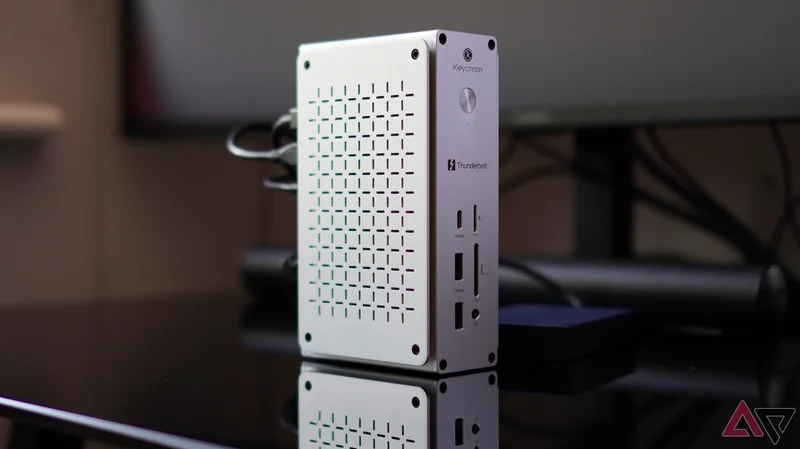
Keychron is best known for its keyboards, but it recently expanded its range to include a Thunderbolt 5 dock, ready to expand the ability of your laptop or desktop computer.
Keychron built it using the same design principles as the brand’s keyboards, but it serves a very different purpose.
Unlike a keyboard, this is not something everyone will need, or be able to fully utilize, as I found out over the last week.
Here’s what I learned about the Keychron Thunderbolt 5 14-in-1 Docking Station, so you can judge whether it will be for you or not.
Keychron’s dock design is great
All-metal cool
Keychron’s keyboard design and its use of materials are reflected in its Thunderbolt 5 dock. It’s made of metal, and obvious black screws hold it together, giving it a modern, industrial look.
Despite the metal case, complete with its raised aluminum side panels, the entire unit is light, making the sticky rubber feet essential to keeping it in place.
It’s designed to be stood on its end, but can also be positioned on its side. However, the normally horizontal labels look odd in this orientation.
All the ports are placed on the front and the back of the unit. The spread is sensible, giving you plenty of access to often-used ports.
The big thing is the Thunderbolt 5 in-and-out ability, allowing you to connect to compatible devices and make use of the fast speed, high resolution, and refresh rate.
Sounds great, but it’s worth knowing that to get this, you’ll need a laptop or computer with Thunderbolt 5. It won’t add Thunderbolt 5 capabilities to Thunderbolt 4 or earlier ports.
Thunderbolt 5’s specs are impressive. Expect 80Gbps bidirectional data speeds, a 120Gbps boost mode, and dual monitor support with 8K resolution and a 60Hz refresh rate, or 4K resolution at up to 240Hz.
If you connect a compatible SSD, transfer speeds can reach 6,200MB/s. It will also charge your compatible devices at up to 140W.
There are three Thunderbolt 5 ports in the Docking Station. There’s a microSD and an SD card slot, a 2.5Gbps Ethernet port, four USB-A ports, and a USB-C.
Keychron shows a variety of possible layouts on its website, and the Docking Station’s ability is clear.
Overkill for most?
It definitely is for me
When I started using the Keychron Thunderbolt 5 dock, I immediately understood it was complete overkill for me. However, the longer I used it, the more I liked it.
The problem, if you can call it that, is my starting block. I use an Apple Mac Mini with an M1 chip, attached to a pair of monitors.
I’ve always used a Satechi Stand and Hub, which conveniently adds an SD card reader and some handy additional ports.
Due to the way an M1 Mac Mini recognizes monitors, I can’t connect them to the Keychron Docking Station and maintain my ideal layout and resolution. Does this mean it’s automatically pointless?
I have used it to add my (until now, rarely used) SSD for Time Machine backup duties, permanently connect my Shure MV6 microphone, put my microSD card adapter away, and made use of its USB charging and syncing ability.
Backing up my Mac using Time Machine to a WD 5TB My Passport hard drive over USB-C took about two hours, copying and cleaning up around 730GB. It required no additional setup or setting changes, and was fast and reliable.
I tried switching my Ethernet cable from the Mac Mini to the Docking Station, but in an Ookla Speedtest, the connection returned slightly slower speeds.
The 3.5mm headphone port is useful, and worked with my Bose QuietComfort Ultra (Gen 2) after I changed the output to the right option in the Mac’s settings menu.
The Docking Station also quickly read both SD and microSD cards, and transfer speeds were very fast.
Make sure you’re going to use it
Without upgrading your existing hardware
Keeping the Time Machine backup and having my Shure MV6 always ready to go is very helpful, but the Keychron Docking Station can do so much more. I may make use of the other ports, but not on a regular basis.
Without the very latest computer hardware, it’s impossible to take full advantage of the Thunderbolt 5 ports.
Additionally, if you use an older Mac, it may not be able to run a dual-monitor setup in the same way as when you use the computer’s ports, which is the situation for me.
Although the Docking Station is modestly sized, it still needs to find a place on your desk. You should measure and check the placement before buying, because it needs its own plug and the supplied power block is quite large.
Although I’m not pushing the Keychron Thunderbolt 5 Docking Station hard, it does get warm to the touch, particularly when it’s placed horizontally on a desk.
How much does the Keychron Thunderbolt 5 Docking Station cost?
Here’s why you have to be sure
The reason I like the Keychron Thunderbolt 5 Docking Station isn’t its overall ability; it’s that it added a few much-needed ports to my Mac Mini.
This is a legitimate reason for wanting one, but the $350 price reflects how capable it really is, compared to my modest use.
The Satechi Stand and Hub almost fits my needs, and costs $80. It’s quite a difference.
If you own a computer with Thunderbolt 5 ports and want to make the most out of its ability with multiple monitors, the Keychron Docking Station is a modern-looking, extensively specced, and very capable (in my limited tests) accessory.
If you don’t, make sure you research your current setup’s ability and scope to support the Keychron Docking Station’s features before spending the money.