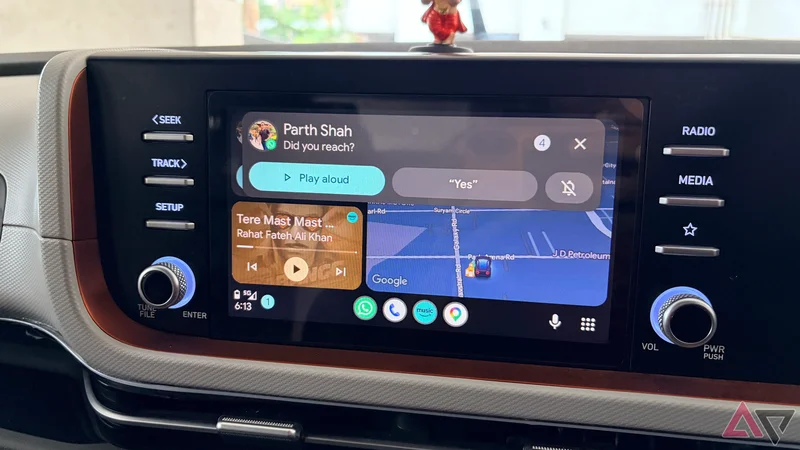
Every time I got into my car, I followed nearly the same routine. I connected my phone, opened navigation, started music, checked traffic, and occasionally sent someone my ETA.
None of these tasks were difficult, but repeating them on every drive quickly became tedious and distracting.
It was only after exploring Android Auto more carefully that I realized my dashboard could handle much of this routine without waiting for me to tap through menus.
Android Auto launches without my help
My dashboard wakes up before me
One of the most convenient parts of my setup is that I no longer need to launch Android Auto manually.
As soon as I start the car, my phone reconnects wirelessly, and Android Auto appears on the dashboard within a few seconds.
By the time I fasten my seat belt and adjust the air conditioning, the interface is usually ready with Google Maps, media controls, and my recent apps.
This may sound like a minor convenience, but it removes an annoying step from every drive.
Earlier, I occasionally had to unlock my phone, check whether Bluetooth was connected, or tap through the car’s infotainment menu before Android appeared.
I went into the Android Auto settings on my phone and enabled Start Android Auto automatically and Start Android Auto while locked toggles.
The connection is not flawless every time, and wireless Android Auto availability depends on the car and head unit. However, when it works as intended, it makes the entire experience feel properly integrated.
Starting my playlist automatically
My drive picks up the beat
This automation becomes especially useful during long drives, where I often stop for fuel, food, or a short break.
Earlier, every time I restarted the car, I had to open YouTube Music, head to Downloads, and start a playlist manually on the dashboard.
It was not a major inconvenience, but repeating the same steps several times during one journey quickly became annoying.
The Start Music automatically toggle removes that friction from my routine. As soon as Android Auto reconnects, it resumes music from my preferred app without requiring any taps.
In most cases, it continues the same track, playlist, or podcast from where I left off, so the experience feels almost uninterrupted even after a break.
I find this particularly helpful when I am taking breaks in unfamiliar areas or trying to merge back onto a busy road.
Instead of looking at the dashboard and restarting playback manually, I can focus on driving while Android Auto handles the music for me.
It is a small automation, but on a long road trip with multiple stops, it saves more effort than I initially expected.
Driving mode silences unnecessary distractions
My phone shifts into road mode
Android Auto is not the only part of my setup that springs into action when I start driving.
I also configured a Driving mode on my phone that activates automatically as soon as it connects to my car’s Bluetooth system.
I do not need to open Settings, toggle anything, or remember to enable it before leaving.
The phone recognizes the connection and immediately switches to a setup designed specifically for the road.
The first thing it does is enable Do Not Disturb, which filters unnecessary calls, messages, and app notifications while I am behind the wheel.
I have also customized the appearance of my lock screen and home screen for this mode.
Instead of showing my regular collection of widgets, folders, and apps, the phone switches to a simplified layout containing only the essentials I may need during a drive.
I can take the automation further by assigning custom actions to the mode. For example, I can make it increase the phone’s media volume and even launch a specific app.
When I reach my destination and disconnect from the car, the mode switches off and my regular home screen, lock screen, and notification preferences return.
Getting the best out of Gemini actions
One tap handles repeated commands
Gemini actions have become one of my favorite ways to reduce repetitive interactions with Android Auto.
Instead of activating Gemini and repeating the same voice commands every time I drive, I created shortcuts for the requests I often use and pinned them to the Android Auto dashboard.
For example, I have actions such as ‘Send an ETA to Jack on Messages,’ ‘Play my 2026 playlist on YouTube Music,’ and ‘Find nearby vegetarian restaurants.’
When I tap the ETA action, Gemini handles the request without making me dictate the recipient and message again.
These shortcuts are especially helpful because voice commands are not always convenient.
There may be loud traffic, music playing in the background, or other passengers talking inside the car.
My car became smarter than expected
Android Auto has not eliminated every interaction from my drives, but it has removed many of the repetitive steps I once performed without thinking.
It launches automatically, resumes my music, prepares my phone through Driving mode, and gives me one-tap access to my most useful Gemini actions.
If you are planning a long trip, make sure to change these Google Maps and Android Auto settings for a smooth driving experience.