Your Samsung phone already has something better than Android 17 App Bubbles — here’s how to use it
Aug 2, 2026 — 6:00 AM ET
Android 17 isn’t a flashy update, but it gets plenty of significant changes across different areas. One such noteworthy change is a new multitasking feature called App Bubbles — letting you turn an app into a floating bubble on the screen, allowing you to access and use it on top of other apps when needed.
While this is great for Pixel users, if you use a Samsung phone, you’ve had an App Bubble-like multitasking feature for years. It’s called Pop-Up View, and while it shares the same idea, it does a few things differently that make it significantly better than App Bubbles.
Do you know about or use Pop-Up View multitasking on your Galaxy phone?
Pop-Up View is essentially App Bubbles, but with more functionality and better controls
One UI offers two main multitasking modes: Split Screen View and Pop-Up View. If you’ve used a Galaxy phone for a while, you’d already know about or use Split Screen View, which lets you split the screen and run two apps simultaneously. However, you may have missed or overlooked Pop-Up View, as it isn’t that well-known.
Pop-Up View is a multitasking feature that allows you to open an app in a resizable, floating window on the screen. You can use the app in this window like normal. When you’re done, you can minimize the app window, which turns it into an app bubble. This app bubble then floats on top of all other apps, and you can tap it whenever you want to use the app again.
Compared to Split Screen View, which is useful when you want to access two apps at the same time, Pop-Up View is better suited for scenarios where you want temporary access to another app while keeping the main app open in full-screen view at all times. And just like Split Screen View, you’ll find Pop-Up View useful in numerous everyday scenarios.
For instance, Pop-Up View is handy when you want to watch videos on YouTube while continuing a conversation on WhatsApp, without constantly switching between the two apps. Doing quick calculations or unit conversions with numbers open in one app is another use case for Pop-Up View, eliminating the need to repeatedly jump back into the Calculator or a unit conversion app.
Although Google’s idea behind App Bubbles is the same, what makes Pop-Up View better is that it opens apps in a resizable window. This lets you adjust the size of all open app windows on the screen individually as needed. Similarly, it allows you to move an app window anywhere on the screen to maintain usability. Besides, Samsung also offers a few controls at the top of the app window that let you open the app in full-screen view and Split Screen View when required.
How to use apps in Pop-Up View on your Galaxy phone
You can open apps in Pop-Up View on your Galaxy phone in three ways: the Recents menu, the Pop-Up View swipe gesture, or the Edge Panel.
A straightforward method — and the one that doesn’t require any setup — is to use the Recents menu. To use it, first make sure the app you want to use in Pop-Up View is already open. Then open the Recents menu and swipe left until you find that app. Finally, tap its icon at the top and select Open in pop-up view.
Alternatively, you can open an app in Pop-Up View using a swipe gesture. First, enable the swipe gesture. Head to Settings > Advanced features > Multi window and toggle the button next to Swipe for pop-up view on. Tap Swipe for pop-up view, and here you’ll see an animation showing you how to perform the swipe gesture.
Try the gesture — swipe inward to the middle from the top-left or top-right corner of the screen — on a few apps to get the hang of how it works. If you have trouble performing the gesture or find it too easy to invoke, go back to the page that shows the swipe gesture animation and use the Top corner area slider to increase or decrease its trigger area.
Last but not least, there’s the Edge Panel method. To use it, swipe inward on the Edge Panel handle (along the right edge of the screen) to bring it up. Now, if the app you want to open is available in the Edge Panel, drag it to the middle of the screen and drop it onto the tiny window with the text Drop here for pop-up view. However, if the app isn’t available in the Edge Panel, tap the all apps icon (located to the left of the pencil icon at the bottom of the Edge Panel) to view all apps. Then, drag and drop the app you want to open in Pop-Up View to the middle.
Of the three methods, I prefer the gesture-based one. It’s fast and doesn’t require multiple taps, like the other two methods. That said, it might take some time to get used to the gesture before you can start using it instinctively.
Once you open an app in Pop-Up View, it appears in a tiny window on your screen, and you can use it as you would normally. Now, if you find the app window too small or too big, you can resize it. Just tap and hold one of the corners and drag outward or inward to make it bigger or smaller, respectively. This works even if the Pop-Up View trigger gesture isn’t enabled.
Besides resizing, you can perform a few other actions right from the app window. Tap the tiny horizontal bar at the top of the app window; it will reveal a bunch of icons. The leftmost, window-like icon puts the control icons at the top of the app window and keeps them visible at all times. Meanwhile, the minus (–) icon minimizes the app window; the icon with arrows pointing in opposite directions opens the app in full-screen view; the icon with two boxes stacked on top of each other opens the app in Split Screen View. There’s also an X icon, which closes the app window.
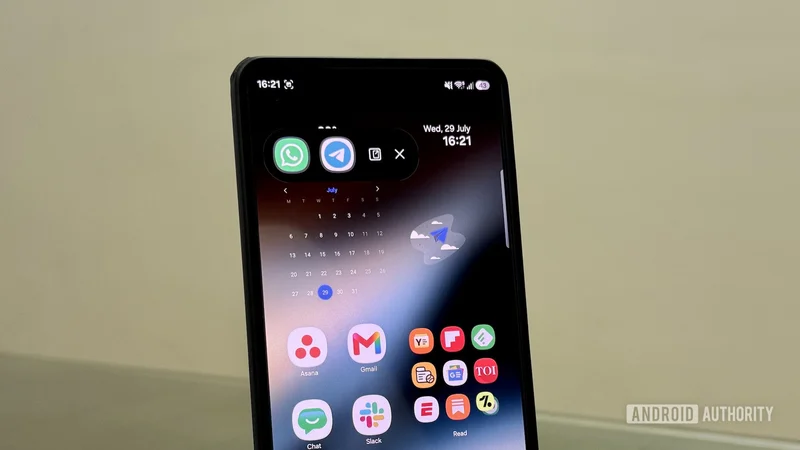
One UI lets you open up to five apps in Pop-Up View, so you can follow the steps above to open more apps if required. When you have more than one app open in Pop-Up View, tapping an app bubble displays a horizontal bar with all app bubbles. You can tap any app bubble to open its app in its own app window. Alternatively, if you want to open all apps at once, tap the square icon to the left of the X icon. Hit the X icon to close all app bubbles.
Pop-Up View and App Bubbles are similar, but not the same
While both Pop-Up View and App Bubbles share the core idea, they aren’t the same and differ in a few ways. The most notable difference is in their window behavior. Samsung’s Pop-Up View feels more mature since it opens apps in their own app window. As such, you can view and work on more than one app on the screen at once.
Another advantage of isolated app windows is that you can resize them individually based on the apps you’ve opened and what you’re doing in each one. This also makes it possible to see the app’s contents while it’s open in the background, unlike App Bubbles, which takes up almost the entire screen. Last but not least, Pop-Up View offers controls on each app window. Not only does this simplify basic actions, but it also lets you perform actions on app windows individually.