I used to waste too much time looking for information I knew was somewhere in my Google account.
Sometimes it was buried in an old Gmail conversation. Other times, it was hidden inside a Google Drive document.
No matter how many searches I tried, finding the right file often felt like guesswork.
Then I discovered a Gemini feature that changed everything. Instead of making me remember where something was saved, it found the answer for me.
Now, it's the first thing I use whenever an email or file seems impossible to track down.
Google Drive search only works if you know what you're looking for
The problem with relying on filenames and keywords
If you've been using Google Drive for years, chances are you've accumulated hundreds of documents, PDFs, spreadsheets, and presentations.
Drive's built-in search is fast and supports filters such as file type, owner, and modification date. But it still expects you to know something about the file you're trying to find, whether it's a keyword in the title, a phrase in the document, or who shared it with you.
Often, I remember the information I need, but not where I saved it. Maybe it was mentioned in an email, attached as a PDF, or referenced in a document with a completely unrelated filename.
In those situations, searching Drive alone means trying different keywords, opening multiple files to see if one of them contains the answer.
Gemini takes a different approach. Instead of relying on exact keywords, it lets you describe what you're looking for in plain language.
It can also look beyond Drive by using Gmail or Google Calendar as context, making it easier to uncover information that's scattered across emails and files.
How Gemini connects Google Drive and other Workspace apps
It searches across all applications
One of the biggest advantages of Ask Gemini is that it doesn't treat Google Drive and other Workspace apps as separate. It can search across all of them at the same time, using emails, attachments, documents, PDFs, spreadsheets, and folders as context for my question.
That means I no longer have to remember whether an important detail was in an email or inside a Drive file.
To use it, open Google Drive and click Ask Gemini (sparkle icon) in the upper-right corner.
Gemini can also search other Workspace apps like Gmail, Calendar, and Google Chat, so you can ask questions in plain English instead of relying on keywords.
For example, I could ask, "Summarize everything related to the website redesign from my emails and Drive files" or "Find the PDF John emailed me about our marketing budget."
Gemini scans the relevant sources, connects information across them, and cites where it found each answer, making it easy to verify the results.
Availability varies by account, region, and rollout. Some users may have access on free accounts, while others may need an eligible Gemini or Google Workspace plan.
It uncovers details I had completely forgotten
I stopped overlooking important information
One of the biggest reasons I've started relying on Gemini in Drive is that it finds information I didn't even remember existed.
A quick question often brings together an email from months ago, a meeting on my calendar, or a document in Drive that I'd completely forgotten about.
That's useful when I'm trying to remember decisions rather than locate files.
Instead of searching for a document with the right keyword, I can ask Gemini something like, "What did we decide about the website redesign?" or "Summarize everything related to my meeting with Amy."
Gemini pulls together the relevant context from across supported Workspace apps and links back to the sources so I can verify the information myself.
In many cases, the answer isn't hidden in a single email or document; it's spread across several. Gemini connects conversations, files, chats, and calendar events, reminding me of forgotten details.
You can also verify where Gemini found the answer
Trace everything back to its source
Gemini doesn't only give you an answer; it also shows where that answer came from. After generating a response, you can view the citations in the text or at the bottom of the answer to see which emails, documents, PDFs, chats, or other Workspace content contributed to it.
That makes it easy to jump to the original file or conversation if you want more context or need to verify a specific detail.
I find this helpful when Gemini summarizes information from multiple places. Rather than wondering whether it interpreted something correctly, I can review the sources myself.
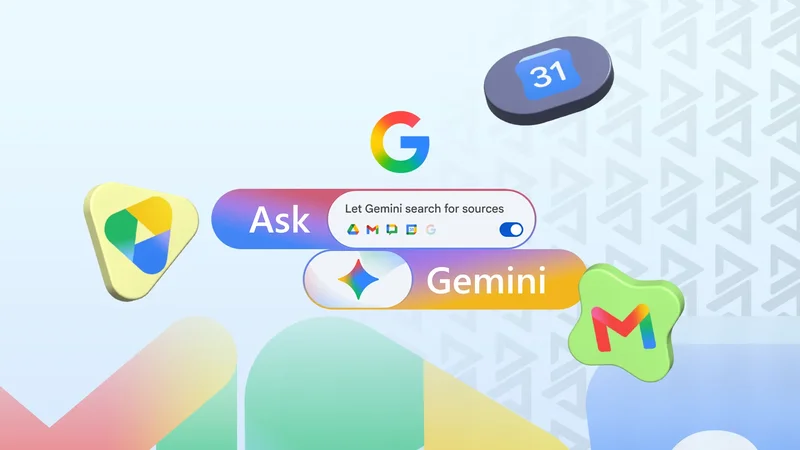
Ask Gemini can search across your Google Workspace, but you're in control of where it looks. After opening Gemini in Google Drive, enable Let Gemini search for sources and choose the specific sources you want it to use.
If you only want results from your Drive files, you can turn off other sources. This makes it easy to broaden or narrow Gemini's search depending on what you're trying to find.
Gemini has become my default way of searching Workspace apps
I still use traditional search when I know exactly what I'm looking for. But when I don't remember where I saved it, Gemini is almost always faster.
Instead of switching between Gmail, Drive, Chat, and Calendar, I can ask a single question and let it connect the dots for me.
This underrated feature saves time in a genuinely practical way, and after using it, going back to keyword searches feels unnecessarily limiting.