Over a decade of relying on Google Photos, I’ve enjoyed its facial recognition capabilities. Privacy purists might cringe at the thought, but the underlying data stays on my device and account.
That isn’t my primary issue with the service, though. The bigger problem is how easily Google Photos can mess up face suggestions.
It’s not perfect and is still learning, so it makes mistakes.
It regularly serves up memories of people I’m hardly close to, and occasionally injects completely unknown faces into my gallery.
My face groups became littered with strangers, which quickly became a massive headache.
Fortunately, Photos includes built-in tools that help clean up errant face suggestions and train the algorithm to work to my advantage.
The built-in facial recognition has been pretty handy
But leaving it on default was a mistake
Google Photos was one of Google’s earliest services to leverage machine learning before current AI trends took off.
It gave us advanced search features like automatic tagging and editing capabilities such as Magic Eraser.
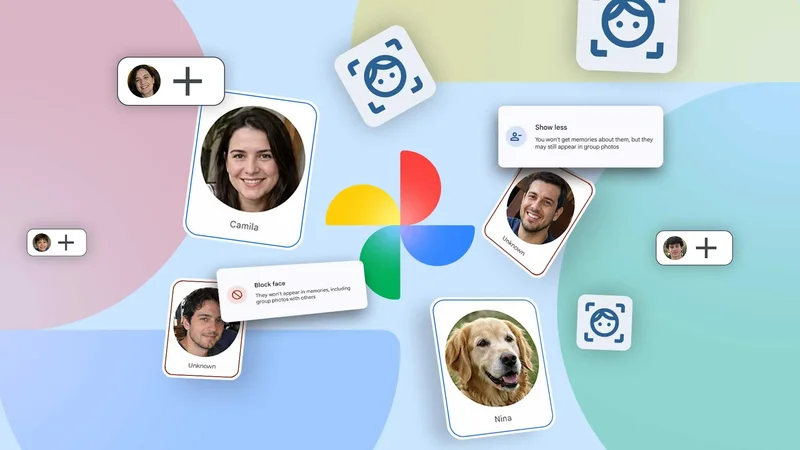
Then there’s the built-in facial recognition feature known as Face Groups, which generates a face model of every person or pet for tagging photos and videos. It has been handy since day one.
I’ve used the feature to organize media in my library. Finding specific shots in Photos is faster and more reliable than digging through untagged groups.
Face Groups also simplifies media management when copying and moving items to existing albums, or creating new ones with a couple of taps.
Over the years, though, I became lazy. I left the recognition algorithm running on its own on my devices. I assumed that as long as my family and I had our dedicated face groups, everything would run smoothly.
I eventually realized that ignoring the setting was a mistake, and I paid the price when my library turned into clutter.
My library now brims with portraits of strangers
And sorting it out is a hassle
While I don’t spend every day scrolling through my library of thousands of photos and over a hundred clips, I’ve gotten into the habit of organizing them into dedicated albums for every trip.
This setup makes it easy to pull the images and video clips I need for a quick edit or a social media post.
However, leaving facial recognition unchecked allowed subtle errors to creep into overtime.
Unfamiliar faces and unknown pets started popping up inside the Group similar faces section and the Memories carousel on my Google Pixel 9 Pro XL and Samsung Galaxy Z Flip 7, which felt equal parts frustrating and weird.
I also missed several photos and videos from our Japan trip albums because I leaned heavily on tagged items to organize them.
I eventually discovered dozens of shots in two separate face groups of my wife that were never tagged to her because Google Photos failed to recognize her existing face ID.
To make matters worse, I discovered that I have three unlabeled face groups, which also have many of my recent snaps.
I had to manually and correctly label those groups, which merged the unsorted items into her existing primary face group.
I finally fixed Google Photos’ facial recognition woes
You have to painfully train the system
Repeating this process for other untagged items helped clean up the clutter across my library.
When an unlabeled face ID appears, you can assign it to an existing profile if it belongs to the same person.
Doing so merges all matching photos and videos into a single group while training Google Photos’ algorithm to recognize and pair face models more accurately.
To do this, go to Photos > Collections > People & pets. From this screen, you can manage every generated face group model or ID.
The same process applies when Google Photos mistakenly links the wrong face model. Jump into the Group similar faces section, select the model, and edit it.
For unlabeled face groups, tap the person or pet’s group, then tap Add name to assign a new label or link them to an existing ID.
To clear unwanted face IDs, tap the profile and open the photo removal tool. Select the three-dot menu and choose Remove photos.
From there, select every photo and video you want to remove. Clearing out all content from the group completely deletes that face model.
When finished, the unwanted profile will disappear from your People & pets collection in Google Photos.
It’s a tedious process, but it is efficient for decluttering my gallery and preventing Google Photos from generating random clusters of strangers’ faces.
Remove unwanted face groups or IDs by removing the photos tagged with them. It will not delete the images and videos.
Use face group suggestions to train Google Photos
A quick review session makes it foolproof
You can also refine Google Photos’ recognition accuracy using the face suggestion review tool, which typically appears when managing duplicate face groups.
A prompt appears at the bottom of the screen asking you to review a sequence of photo cards to confirm whether the same individual appears in each shot.
This is equivalent to actively tuning the algorithm so it stops misidentifying people in future uploads.
It serves as a handy alternative to manually labeling every unknown group, allowing you to review a handful of cards instead of tagging an entire library by hand.
Should you enable Face Groups?
Keeping Face Groups active offers organizational perks, giving you peace of mind that your Google Photos library isn’t tagging total strangers as close friends or family.
Beyond keeping my gallery tidy, it improves search accuracy and feeds better recommendations into Memories for media curation like reviews and stories.
Naturally, there’s no need to keep facial recognition enabled if you don’t care about these features. Turning it off protects you from facial recognition bugs altogether.
Disabling the setting also cuts off Google Photos’ access to face data, which remains a primary reason privacy-conscious users should keep it turned off.