The new battleground for Live TV services is providing extra value for subscribers, with companies such as Spectrum and DirecTV offering customers free ad-supported versions of HBO Max, Discovery+, Peacock or other streaming platforms as part of their live television packages.
But then these services are faced with a secondary challenge. How do you create a user interface (UI) that integrates all of that content into one app? Not just because having everything in one place is customer friendly. But because multiple user studies have shown that most subscribers don’t dig around for something to watch. They see something on the home page that looks interesting and click that. So every live TV service has been searching for the combination of algorithms, content surfacing AI tools and user interfaces that best answer the question “What do we want to watch now?”
The answer for DirecTV customers is the Gemini streaming device, an all-inclusive streaming receiver that is meant to be the home for all of your streaming choices.
There are two versions of the Gemini - the base model that is made for the company’s satellite TV customers. And Gemini Air, which targets DirecTV’s streaming TV only subscribers.
Setting Up The Device
Gemini is available as a dongle that plugs directly into your television (similar to Roku and Fire TV devices), or a small low-profile box that sits next to your television. I have been testing the Gemini Air box, although my understanding is that UI is exactly the same as it is with the dongle.
The set-up is essentially plug-and-play and once you are logged into the internet and sign into your DirecTV account, you’ll be ready to go. My experience was that it took less than five minutes from the time I opened the Gemini shipping box until the time I was up and running.
The Gemini interface itself will be familiar if you are a current streaming DirecTV customer.
First, you’ll be asked to select your favorite TV channels and apps that are available through whatever DirecTV package you have subscribed to - Gemini works with either a full DirecTV live television package or with one of its newer genre packs. These choices are important, because they help the system recommend similar channels and shows to the ones you are watching. You will also be asked to select your favorite sports teams, which will be used to help populate Gemini’s sports tab.
The Gemini Home Page
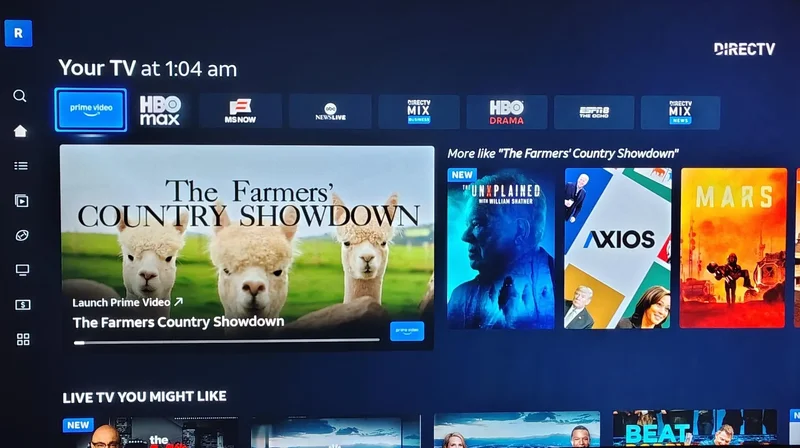
Once the setup is done, you’ll find a home page that is built around your viewing habits. The top row includes tiles of the channels you’ve watched recently, and clicking on one of the tiles brings up that channel’s current live feed in the left side of the second row. If you click on a streaming service app, it will bring up the last show you were watching. To the right of the live window are other channels or shows Gemini’s algorithm thinks are similar to what you are watching.
Then horizontal rows below that on the front page include live channels you might like and highlights of content from your favorite streaming apps and live TV channels. It’s designed to highlight the things you watch most often, while also including similar programs that might not be on your radar.
My experience is that while it’s not perfect, the Gemini algorithm is better at these content recommendations than similar efforts at Hulu and YouTube Live TV. And it appears to learn as you continue to use it. Something that YouTube TV steadfastly refuses to do.
The left-hand navigation bar that appears both on the home page and every other page on the app provides direct links to a live television guide, your library of recorded shows, your streaming apps, sports and more.
The Gemini Live TV Guide
The live television page looks like a typical live TV guide and it can be sorted by the DirecTV channel number or alphabetically. You can set things to record directly from the guide via a record button on the Gemini remote or click into the title to get more information before deciding if its for you. The guide also includes links to the bigger streaming apps. This is also where you can favorite the networks that will appear via your “Favorites” tab.
Gemini’s Library Section
The “Library” tab provides a link to everything you’ve recorded using Gemini’s unlimited cloud DVR. The tiles are arranged according to the date they were recorded, which makes finding the titles much easier. And if you have recorded multiple episodes of a show, clicking into the tile brings them up in a vertical row, arranged by episode number.
Integrating Live Television And Streaming Apps
As I have mentioned, Gemini deeply integrates streaming apps into its interface. Most of the major apps come pre-installed on Gemini and all you need to do to use them is sign-in. You can also add additional apps using the Google app store.
One of the interesting ways that integration happens is the way Gemini connects you with SVOD content. If you click on a title tab for streaming service content in any of Gemini’s sections, you will see the page above. It will either provide a link to launch the service (if you already subscribe) or a link to subscribe.
On Demand Programming
Gemini also has an on-demand section, which includes titles for rental or purchase as well as titles available via Gemini’s on-demand or on the various streaming apps.
Keeping Track Of Live Sports Programming
Gemini has a dedicated sports section that provides links to current and upcoming live events, as well as tiles that provide links to programming associated with your favorite sports teams.
The Big Takeaways: The Good
I write a great deal about streaming UIs and the various streaming services. And as a result, I have seen just about every variation of what is available in the market.
DirecTV’s Gemini is my current favorite, with an interface that is intuitive and easy to navigate. Once you get accustomed to the way it is set up, you’ll find it easy to switch between your favorite live TV channels, recorded programs and streaming apps. Which helps you answer the “What should we watch next?” question.
And unlike some of its competition, Gemini actually remembers what you were just watching and the point where you last stopped watching it. Which is a simple yet incredibly helpful function.
The Big Takeaways: The Bad
It’s not technically a downside, but you do need to be a DirecTV subscriber to take best advantage of Gemini.
For me, the biggest negative is that unlike when you subscribe to a DirecTV streaming package, you need a Gemini device for each device in your home. DirecTV subscribers typically receive one free Gemini, and then it costs an additional $10 or so per additional device.
DirecTV currently does not currently sell Gemini devices outright. But according to the company, it did sell the devices for a limited time, and as a result, they can be found for sale by third parties, with Gemini boxes costing $50-$75, and the Gemini dongles costing more than $200. Those devices should still work with your streaming package.In Conclusion
If you are a subscriber to DirecTV, you should consider using a Gemini device, at least on your primary television. There is no better way right now to watch live television along with your favorite streaming apps.
And if you are currently looking for a live television service, give DirecTV a close look. Besides the normal full television packages, DirecTV also offers smaller genre-specific packages that can save you money, depending on what you watch on a regular basis. And if you sign up for a genre bundle, you currently qualify for a free Gemini device.