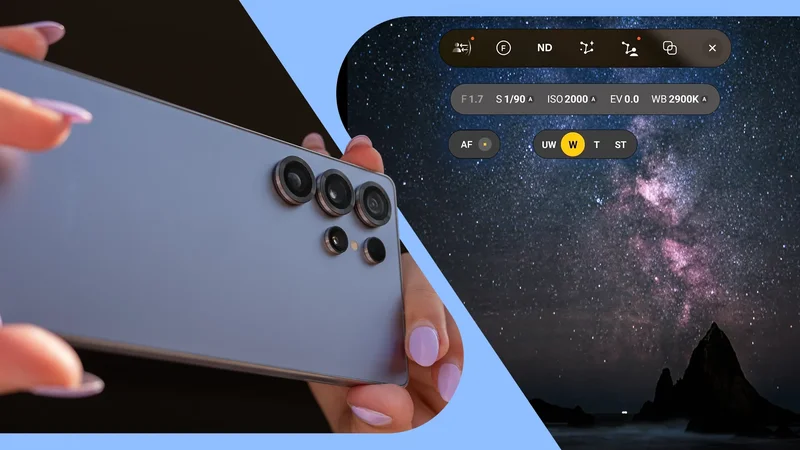
Expert RAW had been sitting on my Samsung phone for months, and I barely gave it a second look.
The regular Camera app was quick, reliable, and usually gave me exactly what I wanted, so I never felt like I was missing much.
I also assumed Expert RAW would mean spending more time dealing with confusing controls to get a better photo. I was completely wrong.
I thought Samsung’s Camera app was enough
Expert RAW gives me actual control
I never felt limited by Samsung’s regular Camera app. Most of the time, I could pull out my Samsung Galaxy S25 Ultra, frame the shot, tap the shutter button, and end up with something that looked great without doing any work.
That convenience also made me lazy. I knew Expert RAW existed, but I kept treating it like a tool for people who understood every photography term and enjoyed adjusting sliders before taking a photo.
However, I started noticing situations where the regular Camera app made decisions I wouldn’t have made.
A sunset could come out brighter than I wanted, shadows could get lifted too aggressively, and Samsung’s processing sometimes pushed colors or sharpening further than I liked.
Here is where Expert RAW came into play. Instead of pointing the camera and letting Samsung decide everything, I could have a say in how the image was captured.
I can adjust the ISO when I want to keep noise under control, change the shutter speed depending on whether I want to freeze movement or introduce blur, tweak white balance when the lighting looks off, and make smaller exposure adjustments before I press the shutter button.
At first, all those controls looked intimidating. In reality, I quickly learned that I don’t need to touch every setting for every photo.
Sometimes I leave most of them alone and adjust only one or two things that matter to the scene.
The RAW files changed my editing
I finally stopped fighting Samsung’s processing
When it comes to the stock One UI Camera app, the colors, contrast, sharpening, HDR, and exposure decisions are baked in, which is great when I want something ready to share.
RAW files gave me more control. I can pull back highlights in a bright sky, lift shadows without making the image look terrible, correct the white balance, or change the mood of a shot in Lightroom.
I quickly noticed the difference with sunsets, indoor scenes, and photos with a lot of contrast between bright and dark areas.
Editing also became more enjoyable because I was no longer trying to fix a heavily processed JPEG. I could start with a more flexible file and decide how I wanted the final image to look.
I still like Samsung’s image processing most of the time, but there are moments when it can be a little too enthusiastic for my taste.
Previously, I would open those photos in an editor and try to undo some of that processing. That always felt backward. Expert RAW flipped that workflow around.
24MP became my sweet spot
Additional details without absurdly large files
One of the Expert RAW options I ended up appreciating the most is 24MP shooting.
On paper, it doesn’t sound as exciting as going all the way up to 50MP or 200MP, but in everyday use, 24MP feels like the best balance for me.
The files have more details than the standard shots I usually take, which gives me extra room when I want to crop into a photo later.
At the same time, I am not dealing with large files that come with shooting at the highest resolution every time.
I don’t need a 200MP image of everything I photograph, and storing hundreds of those files would become annoying.
The extra shooting modes are fun
There is a lock screen widget as well
The manual controls and RAW files are the practical reasons I have started taking Expert RAW seriously. But some of my favorite parts of the app are the features I probably won’t use very often.
Samsung has packed in a few specialized shooting modes that encourage me to experiment.
Astrophotography is a good example. I don’t go outside every night to photograph stars, but having a dedicated mode with longer capture times and a Sky Guide makes me want to try it whenever I am somewhere away from city lights.
Then there is the recently introduced Ocean mode, which is easily one of the more unusual additions Samsung has made to Expert RAW.
These tricks turn the camera into more of a playground.
Samsung hid its best camera tools
I am not going to use Expert RAW every time I pull out my Samsung phone, and I don’t think that is the point.
But whenever I care about the final shot, Expert RAW now feels like the obvious choice.
The extra control, more flexible RAW files, and those handy modes made photography on my Galaxy S25 Ultra much more enjoyable.
Expert RAW turned out to be one of the best camera features Samsung offers, and I wish I had started using it sooner.