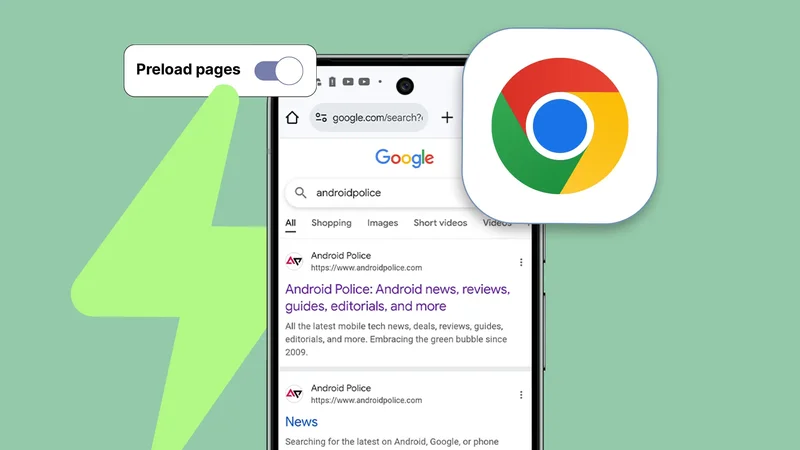
It'd be fascinating to see Chrome browsing the web on my behalf with great accuracy, but I believe we are far from that future.
In the meantime, Google Chrome offers a simpler version of what I would call "predictive web browsing."
However, its primary objective is more serious than sounding cool by automating your web browsing. It aims to boost Chrome's performance, which many users, including myself, desire.
Chrome may be the best overall in speed in the web browsing space, but you can speed up the browser even more by using the feature. That's what Google claims officially, which I always take with a pinch of salt.
Instead of taking Google's word for it, I tested whether Google's claims are true. I let Chrome browse one step ahead of me for a week to see what I'd missed previously. Here is what I found in my experiment.
How does Chrome making predictions on the pages you visit next help?
Why Chrome predicts your next page
If you Google search for how to speed up Google Chrome, you'll see a link to Google's support page below the AI overview with tips to improve the browser's speed.
One of the key highlights on the support page says that users should configure the preload settings to boost Chrome's speed. However, there are other ways to do it, but the way preload settings do it is the most interesting.
It tries to figure out which pages I'm likely to visit next and loads them before I even click. So, half of the work is done before I click the mouse. The pages feel like they're loading faster when I visit them.
Google hasn't publicly documented how its prediction algorithm works, but browsing history, cookies, and user behavior likely hint to Google's prediction system about what to load.
In my experiment, I found these pages load more quickly with the Preload pages feature turned on. However, I would refrain from claiming that it boosted the loading speed for all the websites I visited.
This wasn't surprising because it makes predictions. Still, I wanted to ensure that Chrome preloads as many pages as it can to save as much time as possible while browsing the web.
Google Chrome has Extended preloading for those who want the browser to go all in and make more predictions.
Google Chrome's Extended preloading takes a more aggressive approach
It's faster than Standard preloading
I tested both the Standard preloading and Extended preloading settings and found that the former was better. When you enable the Extended preloading option, Chrome puts in more effort and makes more predictions to preload more pages.
If I go by Google's description, when Extended preloading is on, it hides your identity from the sites during the preload request. But Google still learns what sites are preloaded, as Google servers work as an intermediary in the process.
Extended preloading preloads more pages, not all pages. This means you won't get the benefit of turning it on every time you visit a web page.
While this isn't a foolproof solution, you'll see most pages loading faster while browsing. Also, the more I browse, the more accurate its predictions can become, so I'm optimistic that it'll load even more pages than it currently does.
How to enable Extended preloading
It's easy to find in Chrome's Settings
While Preload pages sounds like a simple feature, Chrome does a lot of complicated calculations behind the scenes to make accurate predictions. However, as a user, you should only care about turning it on.
This isn't difficult. All you do is click the three-dot menu in the upper-right corner, scroll and select Settings, tap Performance, and scroll to find the Preload pages toggle in the Speed section.
Turn on the toggle and then select the Extended preloading button. That's it, and you are all set.
The Preload pages feature is also available for Android users, but it's available on the Privacy and security page.
I wish I had done it sooner
The Preload pages, especially with Extended preloading turned on, may feel like it's saving very little time, but those small gains add up. So, I don't underestimate its potential in the long run.
I regret living under the illusion that my powerful computer will automatically mean Chrome will run faster on my device. Sure, powerful hardware and internet speed matter, but that's no excuse for ignoring useful performance settings.
That's my biggest takeaway from a week-long experiment. Looking back, I only wish I had given it a chance sooner.