How to get the best audio out of your PC
For when your laptop speakers just aren't cutting it.
Modern desktop PCs and laptops aren't typically known for having the best sound systems right out of the box. Desktop manufacturers spend money on graphics cards and central processors instead of high-end audio components, as that's what consumers pay attention to.
But laptop makers have been making serious strides with audio. HP has teamed up with Bang & Olufsen, and Samsung owns several high-profile audio brands, including Harman Kardon. Newer Apple MacBook speakers sound pretty good, especially when compared to stuff that was coming out a decade or so ago. However, laptops are hobbled by the form factor. There's only so much room for speaker parts.
These factors have left consumers looking for external solutions. Luckily, there are plenty to choose from. Here are some ways to get the best audio out of your desktop PC or laptop.
Pair some external speakers
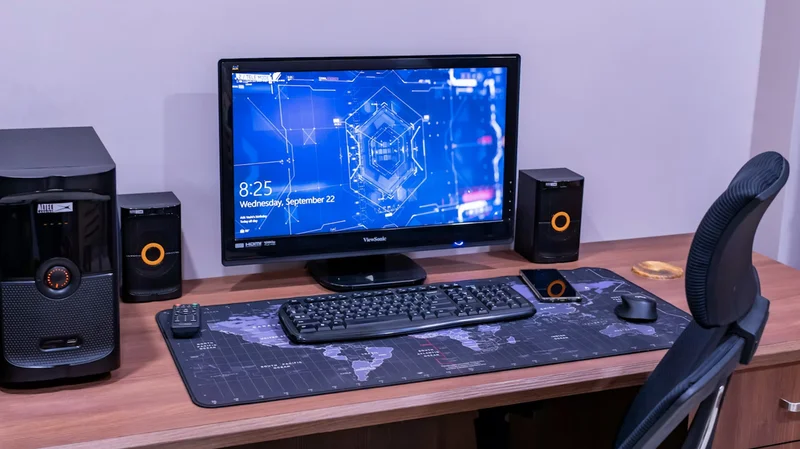
External speakers are the obvious choice here. This is a tried-and-true solution, though there are some caveats worth considering. The tech here has come a long way since the days of tinny-sounding bookshelf speakers, but that means there are hundreds of options to choose from. Some have built-in digital audio converters (DACs), and others offer wireless sound. Some are part of larger systems that include subwoofers, while others are passive and require an external power source.
In other words, go with something that sounds great and meets your budget. Speakers with integrated DACs tend to sound a bit better, due to higher-quality decoding, but an external DAC also gets the job done. Wireless setups are more convenient than wired systems, for obvious reasons, but tend to sound a bit thinner. High-end Wi-Fi speakers perform better than Bluetooth speakers, as Wi-Fi has a higher bandwidth than Bluetooth.
A system with a standalone subwoofer is also a great choice. These speakers accentuate the bass response and can typically be tucked away underneath a desk or entertainment table.
Don't forget about headphones
Headphones are always a great option, especially if you don't have the space for a real-deal speaker setup. A high-end pair of cans will sound decent out of the box, as most laptops and desktops have a built-in DAC of some kind. However, there are a couple of ways to increase the sound quality, which is important if you like to listen to hi-res audio.
For wired headphones, consider a portable DAC. These are usually about as small as a USB stick and plug into a USB port. They tend to sound better than a computer's built-in DAC. This can be coupled with a standalone headphone amp and a good pair of wired headphones for the ultimate in sound quality. Go for some open-back or closed-back studio monitors here. A standard gaming headset will technically get the job done, but this isn't the best option for top-tier audio.
Modern wireless headphones have gotten much more impressive, and many users likely won't be able to spot the difference in sound. They also have built-in DACs and amps, removing the need for multiple purchases.
Connect the computer to a home audio system
You could always connect the computer or laptop to a pre-existing home audio system. That way, you can listen to stuff in the same manner you normally do. This is fairly simple. Just plug a 3.5mm-to-RCA cable into the computer's headphone jack and the aux input of your receiver. For better audio, pop a standalone DAC into a USB port and then plug the cable into that. Many DACs actually have an RCA port, so you won't need that specialized adapter cable.
There are a couple of ways to do this wirelessly. There are plenty of Bluetooth-enabled home sound systems out there, allowing folks to just connect and stream. There are also wireless USB DACs, with a wireless transmitter and an analog signal receiver. The transmitter connects to your computer, and the signal receiver connects to the stereo or speakers.
Download loudness and EQ apps
Computers and laptops have access to tools that can impact every aspect of the audio signal, and many are worth considering. There are various EQ and loudness apps out there. EQ apps can help you tune the sound, which can help account for room acoustics. For instance, if your living room tends to accentuate the bass a bit too much, simply turn down the bass on the EQ.
Loudness apps are great for people who have run into a volume limit with their PC. They'll push a computer's built-in speakers to their absolute limit, so just be careful. A little goes a long way here. Too much loudness can cause harsh audio distortion, which will damage the speaker over time.
There are plenty of dedicated AI tools, but these are more for cleaning up or enhancing bad audio. These are a good choice if you plan on listening to an old cassette recording from 1988, but not that useful when streaming hi-res audio or any standard digital audio file. There are some tools that use algorithms to measure and adjust audio to accommodate a room's acoustics, which can be useful, but these tend to require (at least) a decent microphone.
Tips for great PC audio
There are some fairly easy ways to increase PC audio quality, beyond the listening platform and EQ software.
Spend some time optimizing your operating system. Delete unused files and, most importantly, try to not have too many things running at the same time when listening to audio. It can also help to partition your drive, separating the OS from audio files.
Pay attention to the actual audio files. It doesn't matter how much hardware you have going if the file is heavily compressed and was encoded at a low bitrate. If possible, download or stream hi-res audio. This refers to uncompressed or lossless digital formats that typically exceed CD quality. These file types include FLAC, WAV, AIFF and ALAC. The only downside? They tend to be much larger than MP3s, so a music library is going to take up a lot more space.
You want to minimize unwanted vibrations, as this could impact the audio signal. Use acoustic absorption if speakers are too close to a wall, and make sure to raise the speakers a bit from the computer desk. Some audiophiles go even further, placing the actual PC on a server, rack or anti-vibration platform. Acoustic treatment can also help.
Shut down the computer's display during playback, unless you're actively using it. LCD screens are notoriously noisy, and the high-frequency noise they emit isn't exactly pleasant. Another overlooked culprit of bad audio? Cables and cords. Make sure all of the cables running to and from the PC and any integrated audio gear are in good working order.
If you're primarily streaming hi-res audio, consider a wired Ethernet connection instead of relying on Wi-Fi. This will ensure uninterrupted streaming of large audio files without any jitter or lag.