I've wanted to add a dashcam to my car for a long time, but I've been procrastinating. I didn't want to spend the money or go through the hassle of wiring it up across my vehicle.
That led me to think: I already had a spare Android phone; there had to be a way to repurpose it as a dash cam.
As it turns out, I'm late to the party, and there are plenty of ways to do so.
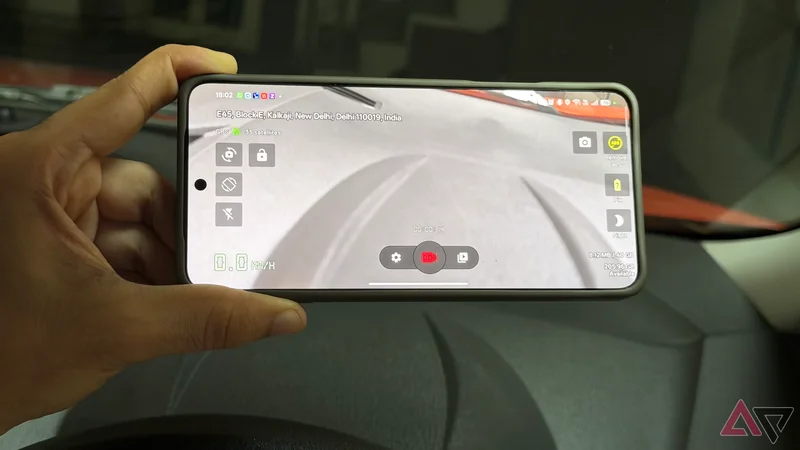
I settled on the Droid Dashcam app because it had great reviews. This app turns any Android smartphone into a dedicated driving recorder complete with all the features you'd hope to see.
Between loop recording, GPS overlays, and impact detection, you might be sitting on the most powerful dashcam around.
For what I need from a dashcam, this setup makes more sense than a dedicated unit. Plus, it saved me money. Here's everything you need to know.
Setting up Droid Dashcam on a spare Android phone
Automatic recording makes it a cinch to get started
Getting started with Droid Dashcam is as simple as it gets.
The app is available on the Play Store, no sideloading required. Just install it and tap open. The app will ask for a few basic permissions when you first start it up, and then you're ready to go.
I recommend investing in a dashboard mount so you can mount your phone horizontally, pointing outward through the windshield.
Keeping the phone wired in is a good idea too, since running a constantly recording video camera can take a toll on the phone's battery life. Those are all the prerequisites you need.
Coming to the app, it supports several triggers for automatic recording. You can set it to start immediately when it is put on charge, or when it detects a specific Bluetooth connection. This can be handy if you plan to connect the phone to your car's Bluetooth connection.
In my case, since I'm using the app with a spare phone and wanted my own smartphone paired for phone calls, I decided to keep it simple.
I've added the app to my home screen, and any time I open it, it immediately starts recording. The point is, there's a lot of flexibility here.
One of the core functionalities of a dash cam is the ability to record in a loop. You don't need hours of footage just sitting on a memory card.
You probably won't even view the footage unless you need it for insurance or to review something specific. Droid Dashcam can do the same.
You can set a storage limit so it doesn't fill up your phone's storage. When you start recording, the app will remove the oldest clip as soon as it reaches the limit. For most users, setting this at 16GB or so would more than suffice.
While traditional dashcams tend to have only one camera, the Droid Dashcam exposes all the cameras on your phone.
Okay, a selfie camera probably won't be very useful here, but depending on your vehicle, you might want to use the ultra-wide to get a wider field of view.
Similarly, you can choose a recording resolution. As tempting as it might be to start recording everything at 4K, 60 frames per second to gather footage for your ASMR driving YouTube channel, I'd advise caution.
Large recordings will fill up the storage. Finding a good balance is key because the dashcam needs to record hours of video.
The goal here is safety and security, not cinematography. In my testing, I found 1080p to be a great balance between clarity and size requirements.
GPS data and impact protection make the footage more useful
You can even configure automatic cloud backups
So far, everything I've described doesn't need a dedicated app. You could use the camera app to record the road ahead. That's where Droid Dashcam's other features come in.
The app can embed hyper-specific information into the recording. This includes overlays for date and time, but also your GPS location and speed calculated using GPS. If you want, you can add custom information like your car's registration number.
Having this information embedded in the video is helpful if you want to challenge a speeding ticket or prove you were following the rules.
I like the attention to detail in Droid Dashcam. Like a dedicated dashcam, it includes impact protection.
So, if the phone detects an impact using the built-in accelerometer, it can immediately tag the video as write-protected. This means that even if your configured storage runs out, the app will not overwrite that video.
There are also benefits to using a phone as a dash cam. For example, you can set it to automatically back up recent footage to a NAS or Google Photos account anytime it gets access to Wi-Fi.
Plus, you can unplug the USB cable and walk away with the setup if you live in a neighborhood prone to break-ins.
On the flip side, a phone isn't quite as discreet as a dashcam. Moreover, if you live in a hot area, the sun beaming down on your phone for hours can cause it to overheat and impact battery health.
Why I'm sticking with a phone instead of buying a dashcam
The biggest reason to dabble in using an Android phone as a dashcam is convenience.
If you already have a spare Android phone that you've paid for, it costs you nothing to set it up and experiment with it.
While there are a few cons, it works rather well overall. Plus, Droid Dashcam is a surprisingly robust app in terms of capabilities.
If you've been eyeing a dashcam but don't want to splurge out a few hundred dollars on a new model, this is where I'd start.
Not only because it is free, but because, aside from a few minor issues, it goes above and beyond what most dashcams can pull off. Plus, it makes for the perfect weekend project.