AppImages are designed to be simple. Download one, make it executable and run it. On Ubuntu, though, there’s an extra step: Ubuntu ships FUSE 3 by default, but many AppImages still rely on FUSE 2, so one has to install libfuse2t64 first.
Not so with AppManager, a new(ish) GTK4/Libadwaita app. It fixes that particular annoyance by mounting AppImages through uruntime, replacing the standard AppImage runtime so apps can launch without you needing to install the libfuse2t64 package.
It also handles regular SquashFS-packed AppImages, as well as the newer DwarFS-packed ones.
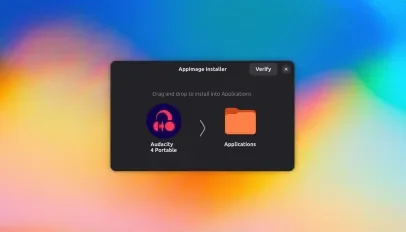
AppManager offers a macOS-style install flow
Once the manager is installed, you can double-click an .AppImage file – no longer needing to mark it as executable first – to access a macOS-style install flow, where you drag the app icon on to the Applications folder to install it.
Doing this moves the binary to ~/Applications (or a directory you define in the tool’s preferences) and creates the relevant app launcher and shortcut needed for desktop integration.
If you have a bunch AppImages on your device already, you can move and integrate them via this app too using the import button. Point it at each AppImage (or a folder full of them) and it’ll handle the rest.
Setting launch options, icons and paths per app
Configure and manage each app individually
As this is an AppImage manager it does more than just offer a macOS-style way to ‘install’ software.
It can check for and update AppImages using Gitlab or Github links; you can set command-line arguments and opt to use ‘portable’ home and config folders on a per-app or global basis. You can also set $PATH or environment variables.
Customisation also extends to app icons, if you don’t like the look of the provided one, and you can edit launcher keywords for apps to help find it in app menus and launchers, including GNOME Shell’s app grid.
Global options: set an installation folder and more
For a speed boost, albeit at the expense of disk space, there’s an ‘extract’ option in each app’s listing. Uncompressing the package contents can, on slower systems, result in heavier software opening a little faster – this can’t be easily undone, though.
Updates can be set to run on a schedule and download zsync delta patches rather than the entire AppImage (where supported). For those who prefer the terminal, there’s a bundled CLI for installing and updating apps too.
Finally, if you ever wish to ‘uninstall’ an AppImage you don’t need to go on a safari hunt for .desktop files. Select the app you wish to expunge in AppManager’s main view, scroll to the bottom and click ‘remove’ to have it clean up for you.
Download and install AppManager
I’ve previously spotlighted apps, like Gear Lever and AppImageLauncher, which do similarly convenient things on the integration side. But unlike those, AppManager doesn’t require you to have FUSE install, which cuts out trying to remember what to install to run AppImages on Ubuntu.
AppManager is open source and, naturally, distributed as an AppImage itself. The developer, Arnis K, says this will run on almost any desktop Linux distribution, including much older ones. It certainly worked fine for me testing it on Ubuntu 26.04 LTS.
Download it from the project’s GitHub releases page, give it executable permissions and then double-click to open. Drag the icon to the folder as shown to install it. Then, launch the app from your app menu and go from there – the app is straightforward to use.