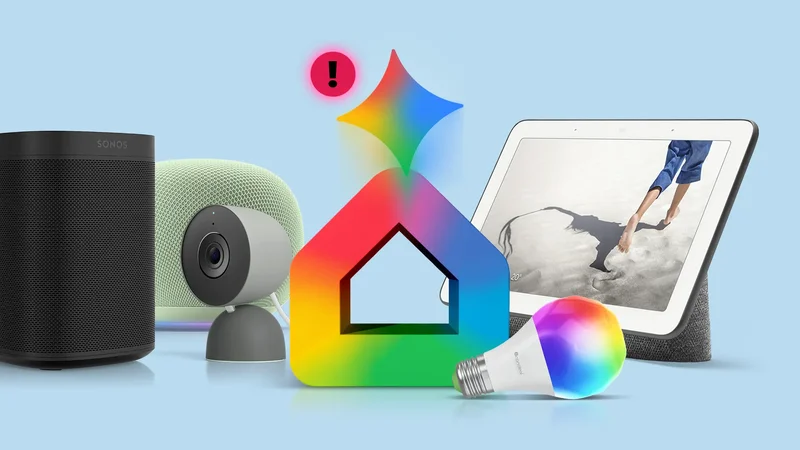
If you haven't been keeping up with the latest technology news, Google will be sunsetting Assistant and transitioning to Gemini.
This applies to almost every device, including phones, Wear OS watches, Android Auto, Nest and Home devices, and everything else that runs Android.
Every transition comes with the challenge of making sure everything works when it's done. Here are all the settings I've changed to prepare for the eventual change.
Set Gemini as your default assistant on your phone first
The first step is obvious but necessary
If your phone hasn't switched to Gemini via an OTA update, you might need to switch manually. This step is obvious, but you'll be surprised how many users forget it or take it for granted.
It's the first thing I did when I heard about the transition from Assistant to Gemini to see how Google is implementing it.
Switching to Gemini as my default Assistant was an easy process, and here's how you can do it:
-
Open **Settings**on your phone. -
Tap **Google**>**All Services**. -
Select **Search, Assistant & Voice**. -
Select **Google Assistant**. -
Search for the **Digital assistants from Google**option. -
Select Gemini, then tap **Switch**to complete the process.
Alternatively, if you have the Gemini app, you can switch from Settings > Digital assistants from Google.
I made the switch a while ago since I use Gemini for quite a few things, including planning my next vacation.
The first thing I did to test whether Gemini was the default assistant app was to long press the power button to launch Gemini.
Since I use this gesture the most, it was essential to see how it functions. If you use a certain gesture, I recommend testing it right away.
I also used my voice to launch Assistant on my Nest Hub and my phone to see how it works. It didn't work for me on my first go on the Nest Hub, so I knew I had to tweak some settings.
The Gemini app had a quick fix. I went to Settings > Talk to Gemini hands-free and enabled Hey Google. That sorted all of my voice-related issues with Gemini.
You may need to repeat Voice Match for Gemini. Follow the prompts to help Google recognize your voice. You won't need to do this for every smart device you own.
I also used a few of my third-party smart home devices, security cameras, and Android TV devices that were previously linked to Google Assistant.
I also used Assistant for playing music and podcasts on various devices, including my Sonos One.
It was time to make other adjustments.
Everything that worked and broke after switching to Gemini
Still a long way to go
The first things I granted access to Gemini were some essential apps I used with Assistant.
Since I like to use various music apps daily, they needed to work right away. I opened the Gemini app, selected Settings, and tapped Personal Intelligence.
Within the Personal Intelligence setting, there's a section for Connected Apps where I enabled everything essential, including Google Workspace, YouTube Music, Spotify, and other apps.
I recommend auditing which apps are connected to Gemini so that your transition doesn't have to be painful. Now that my preferred services were connected to Gemini, it was time to test them.
I couldn't get Gemini to play music as reliably as I used to with Google Assistant, and when it worked, it often didn't play what I wanted or had significant delays.
That's not the experience I was expecting. Hopefully, future updates might fix these issues, but at least my apps were now connected.
Now that my apps were connected, I focused on doing the same process for my smart devices at home.
I opened the Google Home app and was prompted that Gemini would soon replace Assistant. I decided to connect them.
If you skipped the pop-up, you can tap Settings in Google Home, and at the top you will see a prompt to Set up Gemini for Home.
After I finished setting up Gemini for my home and smart devices, I needed to make sure all my routines were working.
I find Gemini a bit slow with commands right now, so it is best to test each routine one at a time using single commands.
While some of my routines worked fine because they were basic, you might need to rebuild more complex ones in Google Home's Automations section.
I would recommend keeping commands simple for now, as Gemini isn't as reliable as I hoped.
It is worth pointing out that not everything works perfectly, especially with Connected Apps. Apps like Spotify or YouTube Music take a little time to fire up and aren't as responsive as Google Assistant.
Here's a list of actions and routines I found that were broken after my switch to Gemini:
- Music, internet radio, and podcast playback from streaming services
- Typed commands
- Missing device errors
- Location-based routine triggers such as entering or leaving home
- Complex routines that use multiple smart devices such as smart plugs and lights
- Sonos One doesn't support Gemini at the moment
Many routines, especially media-related ones, have been discontinued or limited. For now, we recommend migrating to Gemini's Scheduled Actions to avoid issues.
Similarly, ensure all your Nest and third-party home devices are opted in to Gemini in the Google Home app for everything to work properly.
Your device might not support Gemini yet, like my Sonos One. In that case, you might have to wait until your device officially supports Gemini.
Finally, I recommend testing 5 to 10 of your routines daily to see if Gemini is responding correctly and tweaking settings as needed.
For me, it was important to iron out all the issues before the transition. But with all the settings I changed, I'm still not confident everything will work as well as it did with Assistant.
Gemini isn't perfect, but it will eventually get there
Whether I like it or not, the transition to Gemini isn't optional, and Google Assistant's death is coming soon.
There are some teething issues with third-party apps and services, and I'm not sure whether Gemini is a good replacement for Assistant right now.
But if my memory serves me right, Google Assistant's launch was also rocky until it became an excellent smart home tool, and I expect the same from Gemini in the near future.