Tom's Hardware Verdict
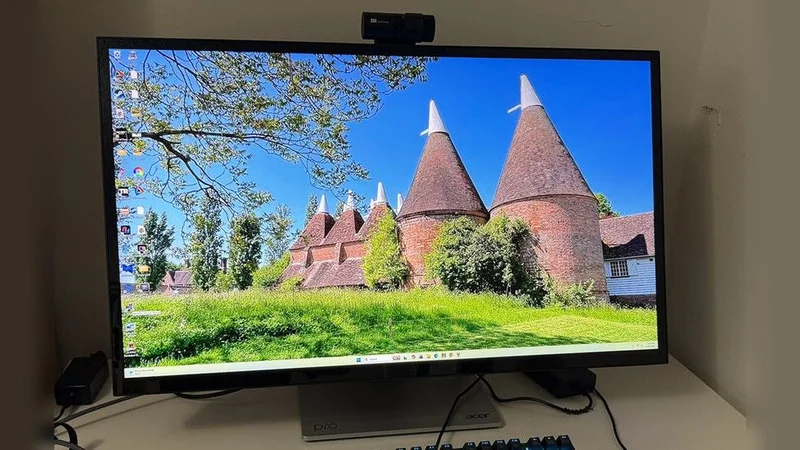
The Acer ProDesigner is unique among pro screens for its touchscreen, tablet-style stand and integrated webcam. It’s extremely colorful and accurate enough for content creation. As a design and presentation tool, it has few equals.
Pros
- +Sharp picture with no visible pixel structure
- +Solid IPS contrast and brightness
- +Huge color gamut
- +Flexible stand is ideal for sharing, drawing and presenting
- +Included webcam and stylus
- +Super cool jumbo touchscreen
Cons
- -No calibration functions in the OSD for standard color modes
- -60 Hz limit and no Adaptive-Sync
- -Would really benefit from a full-array Mini LED backlight
Why you can trust Tom's Hardware
In recent reviews of professional displays, I’ve talked about their function as content creation tools with reference color and the ability to integrate into video post-production and photography workflows. But there is a conceptual side that today’s monitors do not usually address. Designers and creators often collaborate and present their ideas, and for that, different display tools are needed. Things like touchscreens, tablet-style stands, and webcams are just as useful as standardized color modes and reference calibrations.
The Acer ProDesigner PE320QXT is such a monitor. It doesn’t have fast refresh or Adaptive-Sync, but it does have 219 ppi pixel density thanks to its 32-inch IPS panel with 6016 x 3384 resolution. It also has a Quantum Dot film for wide-gamut color that covers over 120% of DCI-P3. A 10-point capacitive touchscreen supports Microsoft Pen protocols. An integrated webcam lets users collaborate remotely. And a slick oleo stand lets the panel tilt back 60 degrees or stand up straight for a wide range of useful positions. Though exotic, it isn’t super expensive at $1,800 to start. Let’s take a look.
Acer ProDesigner PE320QXT Specs
| Panel Type / Backlight | IPS / W-LED, edge array |
| Row 1 - Cell 0 | Quantum Dot Film |
| Screen Size / Aspect Ratio | 32 inches / 16:9 |
| Row 3 - Cell 0 | 10-point capacitive touchscreen |
| Row 4 - Cell 0 | Stylus compatible |
| Max Resolution and Refresh Rate | 6016x3384 @ 60 Hz |
| Native Color Depth and Gamut | 10-bit (8-bit+FRC) / DCI-P3+ |
| Row 7 - Cell 0 | HDR10, DisplayHDR 600 |
| Response Time (GTG) | 4ms |
| Brightness (mfr) | 400 nits SDR |
| Row 10 - Cell 0 | 600 nits HDR |
| Contrast | 1,500:1 |
| Speakers | 2x 5w |
| Video Inputs | 1x DisplayPort 1.4 |
| Row 14 - Cell 0 | 2x HDMI 2.1, 1x USB-C |
| Audio | 3.5mm headphone output |
| USB 3.2 | 2x up, 2x down |
| Power Consumption | 54w, brightness @ 200 nits |
| Panel Dimensions WxHxD w/base | 28.6 x 11.1-20.8 x 12.6 inches (726 x 282-528 x 320mm) |
| Panel Thickness | 2.36 inches (60mm) |
| Bezel Width | Top/sides: 0.55 inch (14mm) |
| Row 21 - Cell 0 | Bottom: 0.87 inch (22mm) |
| Weight | 22 pounds (10.1kg) |
| Warranty | 3 years |
6K resolution is somewhat rare, but I’ve seen a few such panels now, so it no longer has unicorn status. 6016 x 3384 is an in-between resolution that is not supported by video content. You won’t find 6K video anywhere. But it is useful for photography and CAD. It’s also great for presentation and conceptual graphics.
The PE320QXT’s maximum refresh rate is 60 Hz, so gaming with any sort of fast motion is impractical. But if your interest lies in titles that prioritize graphics over speed, 219ppi makes for a stunning image. Though the panel tech here is IPS, contrast is above average at over 1,500:1. HDR10 is also supported, though there is no zone dimming here so you won’t find much extra contrast for HDR content.
You will find lots of color though. The PE320QXT has one of the largest color gamuts I’ve yet encountered. In testing, I measured over 120% coverage of DCI-P3 and over 81% coverage of BT.2020. Adobe RGB gets a fair shake too with 96%. There are color modes to cover all current standards except for Cinema P3; however, Display P3 is included.
The PE320QXT forgoes the integrated calibration of other pro screens I’ve reviewed, but there is some tweakability in the OSD. You get Calman verification as well. I found all the preset modes to be reasonably accurate with just a few minor issues. I’ll talk more about that later.
Peripheral features include USB ports, types A, B, and C. There are four video inputs, two HDMI 2.1 and a DisplayPort 1.4 along with USB-C. Internal speakers play with five watts apiece, and there’s a headphone jack. A 4K webcam is mounted on the top and includes an angle adjustment knob and a cover for the lens. My sample shipped with a stylus that works with Microsoft protocols and can function as a pointing and drawing device. The screen is 10-point capacitive touch.
Get Tom's Hardware's best news and in-depth reviews, straight to your inbox.
The PE320QXT is a different kind of professional display. It maintains color reference but is squarely aimed at designers and collaborators. At $1,900, it’s a decent value when you consider its unique abilities, extreme pixel density, and included extras.
Assembly and Accessories
The PE320QXT ships in fully recyclable packaging with molded pulp protecting the contents. The panel, upright, and base assemble without tools into a solid package. More on that unique stand in a moment. The webcam is permanently attached to the top of the panel. The pen comes in its own box with a USB charging cable for its Type-C port. Bundled cables include HDMI and USB, plus an external power supply brick.
Product 360
From the front, the PE320QXT looks like any other monitor, though it sits lower than most. That’s due to the oleo stand, which provides 60 degrees of tilt so you can angle the panel up like a tablet. The tilt extends five degrees forward as well. The height range is almost 10 inches, but if you want the panel to sit vertically in front of you, you’ll need a pedestal. You also get 360 degrees of swivel, with the base moving on a smooth bearing concealed within it. All movements are smooth and precise and befit a premium display.
The webcam sits atop the panel and is permanently attached. It has a little lens cover for security that slides left and right. You can roll a dial to angle the lens and tilt it completely backwards. The pen I received stows on the bottom of the screen magnetically and is compatible with Windows’ touchscreen protocols.
The screen’s front layer is very slick and shiny, perfect for drawing but not as good at preventing light reflection. You’ll need to be conscious of ambient light sources, especially when tilting the PE320QXT upwards. The image is very sharp and clear when no light hits it.
The ports are around the back and face rearwards. You get three USB ports, one upstream and two downstream. Video includes two HDMI 2.1 and a DisplayPort 1.4 plus a USB-C (DP Alt) port that supports 90 watts of power. There’s a 3.5mm headphone jack, and there are a decent pair of internal speakers, five watts each.
OSD Features
The PE320QXT uses buttons for OSD control. I found this a bit confounding since nearly every monitor today employs a joystick. Navigation is intuitive but slow. I also turned off the power accidentally a few times. Pressing any of the first four keys brings up a quick menu. Click button four for the full OSD.
The OSD is Acer ProDesigner standard and starts with basic image controls. The HDR option includes Off, Auto, and HDR600. I found that even on Auto, I had to manually select the HDR mode for HDR10 content. You’ll also want to turn on the Max Brightness option to get, you know…
In the Color menu, there are gamma and color temp presets for the General color space. These options are grayed out in the other color modes. They are found on the second screen under the Color Space sub-menu. There, you get Adobe RGB, sRGB, BT.709, DCI (Display P3 only), and HDR, which corresponds to BT.2020. General and HDR cover over 120% of DCI-P3 while the other modes are fairly close to their respective values. The picture modes include two calibration settings that can be any gamut and four memories which the user can select. In the Calibration sub-menu, you can specify two of the presets’ gamut selection.
Gaming’s single option is a two-level overdrive. It’s reasonably effective on its Normal setting, but there’s only so much it can do with a 60Hz refresh rate and no Adaptive-Sync.
The PIP/PBP menu gives you options for viewing two sources at once. You can size and move the PIP window and swap sources too.
In Save Settings to, four memory slots let the user assign configurations to four of the 10 picture modes.
Acer ProDesigner PE320QXT Setup And Hands-on
The PE320QXT can be calibrated in the OSD like a regular monitor in its User picture mode when the General color space is selected. This is the default setting, and its gamut covers a very colorful 120% of DCI-P3. I left the gamma preset on 2.2 and tweaked the RGB gain sliders for excellent grayscale tracking and no visible errors. To access other gamuts, use the Color Space option in the Color menu. The most used options are listed below with their color temp and gamma defaults. I noted that all of them grayed out the other picture controls so they cannot be calibrated in the OSD. You’ll see all test results on pages four and five.
|
|
|
|
|
| General | DCI-P3 | D65 | 2.2 power |
| Adobe RGB | Adobe RGB | D65 | 2.2 power |
| sRGB | sRGB | D65 | sRGB |
| BT.709 | BT.709 | D65 | BT.1886 |
| DCI (Display P3) | P3 | D65 | 2.2 power |
| HDR (BT.2020 SDR) | BT.2020 | D65 | BT.1886 |
For gaming and productivity, I stuck with the General color space and User mode with my calibration in place. I’ll deliver the spoiler first: the PE320QXT is not a monitor for fast-paced shooters. There is significant motion blur at 60 FPS to where aiming becomes difficult if you’re accustomed to faster screens. And there’s no Adaptive-Sync, though this wasn’t a significant issue since the frame rate never varied from 60. There is an overdrive option which reduces blur a little and works without ghosting on its Normal setting.
If your games are more like Myst, then you can have a spectacular time playing on the PE320QXT. The color is stunning with rich hues and bright primaries. The image is also razor sharp. 219ppi is a benefit you can plainly see when compared to the 140ppi of the same-sized Ultra HD monitor. You won’t be able to see the dot structure without a serious magnifying glass.
With a resolution like 6K, you must consider the original content. Nothing is mastered in 6K, so unless you’re playing a rendered game, there will be some upscaling. Watching 4K video was a good experience with clean rendering, but the frame rate is locked at 60Hz. There is no support for 24 or 50p cadences.
Rendered graphics are the PE320QXT’s strongest ability. I look forward to the day that 8K is a thing because 6K is so realistic already. Moving through a virtual environment suspends disbelief far more effectively than lower resolutions. Looking at CAD drawings and conceptual renderings is also much more useful with this much pixel density.
Color-critical work is also a good experience, but I wished for more flexibility in the PE320QXT’s OSD. You’ll see in the tests later that color and gamma are close to the mark, but grayscale tracking has errors that are just visible. This manifests more in neutral tones like clouds or snow. And black and white material has a slight color cast as well.
The touchscreen function is something I haven’t seen before in such a large monitor. To activate it, just make a USB connection between the PE320QXT and the PC. I could use my finger or the included stylus to act as a pointing and drawing device. It was handy to store the stylus on its magnetic strip across the bottom of the screen. The webcam was also very cool. It rotates enough that you can keep your face centered in the frame regardless of the panel’s position. With 60 degrees of tilt, it can almost lie flat, which is great for use while standing. The stand is super solid and flexible and lets you put the monitor in almost any position. 360 degrees of swivel means that you’re only limited by cables when swinging the monitor about.
Takeaway: The PE320QXT acquits itself well as a collaboration and design tool. It isn’t quite a reference display for video postproduction or photography, though it supports those color spaces correctly to the point where you could use it for presentation. Gaming isn’t its forte with a 60Hz limit, but the overdrive was effective at reducing motion blur. The tablet feature and flexible stand are its most usable assets since you can work in a group while standing or sitting. The webcam also makes collaboration easy.
MORE: Best Gaming Monitors
MORE: How We Test PC Monitors
MORE: How to Buy a PC Monitor
Current page: Features and Specifications
Next Page Response, Input Lag, Viewing Angles and UniformityChristian Eberle is a Contributing Editor for Tom's Hardware US. He's a veteran reviewer of A/V equipment, specializing in monitors. Christian began his obsession with tech when he built his first PC in 1991, a 286 running DOS 3.0 at a blazing 12MHz. In 2006, he undertook training from the Imaging Science Foundation in video calibration and testing and thus started a passion for precise imaging that persists to this day. He is also a professional musician with a degree from the New England Conservatory as a classical bassoonist which he used to good effect as a performer with the West Point Army Band from 1987 to 2013. He enjoys watching movies and listening to high-end audio in his custom-built home theater and can be seen riding trails near his home on a race-ready ICE VTX recumbent trike. Christian enjoys the endless summer in Florida where he lives with his wife and Chihuahua and plays with orchestras around the state.