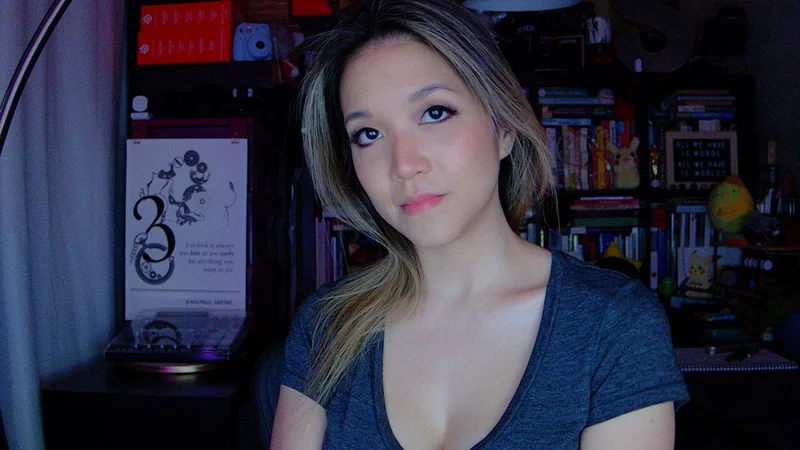
You don't need a professional streaming setup to take work video calls and chat with friends and family — and, honestly, you don't want one. And webcams have a lot of limitations (most professional streamers use DSLRs to shoot content, not webcams), so there's only so much you can do. But it's not nothing.
Here are several things the average person can do to make their webcam streams look better.
Webcam
First of all, let me point out that the webcams on our list of best webcams are, for the most part, not 4K webcams. That's because you don't need a fancy, expensive 4K webcam to look good — and, in fact, a 4K webcam might end up working against you. Most video conferencing platforms, including Google Meet, Microsoft Teams, and Zoom, limit your outgoing stream to 1080p or 720p, depending on the type of account you have. So you basically can't stream in 4K even if you want to (and you probably don't want to). Plus, higher-resolution webcams often require more power and bandwidth, which can result in freezing, lagging, and choppiness (none of which are flattering) if your PC or your internet connection isn't up to speed.
Instead of looking for a high-res webcam, look for one with a relatively narrow field of view and/or digital zoom (which narrows the field of view). One of the reasons we love the Logitech Brio 500 is that it has the option for narrowing the field of view to 65 degrees, and a narrower field of view is more flattering to your face. Wide-angle lenses tend to distort the picture subtly, warping objects at the edges and making whatever's in the center look larger than it is.
Larger sensors and lenses can also help, but what you'll find is pretty limited in the webcam market (they are, after all, webcams) — so instead of worrying too much about the hardware, look for a webcam with robust software support. I'm a big fan of Elgato's Camera Hub (which supports Elgato webcams, such as the Elgato Facecam MK.2 and the Elgato Facecam Neo), which gives you a lot of control over exposure, white balance, and picture adjustments, and also lets you zoom in and save presets so you can quickly switch between angles while you're streaming.
Needless to say, part of the reason you're looking for a webcam with good software is that you should be changing the settings in the software — webcam auto-exposure and auto-white balancing are notoriously terrible and should almost always be manually adjusted. But if you're the type of person who can't be bothered to go in and tweak software settings, you should pick up a webcam with decent auto-exposure and auto-white balancing — the Logitech MX Brio has excellent auto settings (though, at $200, you are paying for them).
Lighting
Lights shining down on you from above, such as those found in a typical office setup or, I don't know, in your kitchen, are designed to help you work more efficiently. They're not designed to flatter your face. In fact, this is probably some of the least flattering lighting around, thanks to the harsh shadows it creates. That said, you generally won't find a "naturally occurring" ideal webcam lighting setup, because most people do not place bright lights behind their already-bright, backlit monitors. But lighting is one of the most important elements when it comes to looking good on webcam, and it definitely makes a difference.
Get Tom's Hardware's best news and in-depth reviews, straight to your inbox.
While there are some webcams that handle poor lighting situations slightly better than others, the difference is pretty minor. So instead of looking for a webcam that performs like a beast in the dark, just grab some lights.
You don't need to go overboard with a full studio setup, but basic three-point lighting is a classic for a reason. This consists of two lights on either side of you (at 45-degree angles) and one light behind you. At the very least, you should try to have two lights on either side of your face, and some sort of lighting (even overhead lighting) in the background so it doesn't look like you're sitting around in the dark. You can, of course, buy lights specifically for your webcam streaming setup — Elgato's Key Light is slim and comes with a desktop clamp mount designed to fit sleekly into your setup, while the brand's cheaper Key Light Neo features a monitor mount. Logitech sells the Litra Beam LX, which is dual-sided (colorful on one side, white on the other), as well as a monitor-mounted option, the Litra Glow.
But you don't need a fancy, wirelessly-controlled webcam-specific streaming light — you can use a lamp, or even the sun. You just need two light sources, of which one is (ideally) dimmable. If you happen to have a multi-monitor setup, you can even use your monitor (or monitors, depending on how many you have). I use this whitescreen website to switch two of my monitors into lights when I'm taking pictures for webcam reviews. Just make sure the lights are off to the side of your face — straight-on lighting is more flattering than top-down lighting, but it does make your features look a little flat.
When you do have at least two lights in front of you, you'll want to make sure you turn off your webcam's auto-exposure and tune the exposure to work with the lights.
Height
Most webcams come with some sort of monitor mount for convenience. But your monitor — especially the top of your monitor — basically never sits at a height that makes for a flattering camera angle. If you've got a laptop, it's too low (even if it's not on your lap), and if you have a desktop monitor, it's probably too high. The best place for your webcam to be is at eye-level — not only does this give the most flattering, accurate view of your face, it also makes it easier for you to look into the camera (and making eye contact with the camera, not your screen, goes a long way in making you look good — or at least like you're paying attention).
There are a few ways to get your webcam to eye-level height:
✔️ Get a separate camera mount
You don't have to mount your webcam on your monitor! Most webcams either have tripod attachment points built in or come with a monitor mount that has a tripod attachment point built in. This lets you mount your webcam on any standard camera mount, such as a tripod, a desktop tripod, or some other sort of desktop camera mount. A desktop tripod is probably the easiest way to get your webcam to an acceptable height, although it's perhaps not the most elegant, as you'll have to move it around when you're not using it. For a more permanent solution, I recommend a desktop clamp mount if you have somewhere to mount it — just make sure that the one you buy has enough adjustment options to get your webcam to where you want it to be.
✔️ Lift your laptop
If you're on a laptop and you happen to be using the built-in webcam, you can't exactly mount it separately, so you'll need to figure out how to get your laptop to eye-level height. The easiest way to do this is to just put your laptop on something: a box, a stack of books, or, if you're feeling fancy, a laptop mount. You'll also need to make sure that the screen is angled correctly — either straight on (90 degrees) or tilted slightly down.
✔️ Mount your webcam in the middle of your screen
Look, your webcam is probably going to end up in the middle of your screen in an ideal scenario anyway, so why not just... put it there to begin with? There are a couple of ways to do this — you can buy a webcam specifically designed to be mounted this way, such as the Center Cam, or you can get a mount that sits in the middle of your screen, such as the PlexiCam Pro V2, which is a clear, acrylic webcam mount that hangs on your monitor and puts the camera right in the center of your screen.
Background
This might seem obvious, but it's not just about how you look... it's about what people can see in the background. I know that not everyone has the space, resources, or willpower to set up some sort of perfectly curated streamer-ready background, and that's understandable. But there's probably some middle ground between showing off piles of laundry and unsuspecting roommates, and looking like you're ready to launch a Twitch partnership.
**✔️ Less is more **
If you can't clean up your background before you get on a call, use the power of zoom and crop. Try to make the area directly behind you as neat and camera-ready as possible, and then use your webcam's software to zoom in and crop so that people just can't see what's just outside the frame.
**✔️ But not... nothing **
While you don't want everyone to see a pile of junk behind you, you also don't want to look like you live in an asylum. And that's what you look like when you just have a blank white wall behind you. If you have to be tucked up against a wall (and, turning your desk around to hide the mess is a completely valid strategy), just... put something on the wall. A picture, a painting, a sign, some of that stick-and-peel wallpaper, anything. It doesn't have to be fancy; it just has to look like you're anywhere that's not an endless void.
**✔️ Use a greenscreen **
Most video conferencing apps have an option to blur your background and/or replace it. I'll just come right out and say it: Blurring your background looks terrible. Yes, I know everyone does it, and it's generally accepted in workplace video calls, but that doesn't mean it looks good — that just means we're all willing to overlook how bad it looks. And replacing your background rarely works well, unless you're against a blank white wall (in which case you should just throw up some art and go with it). If you really can't make a real background work, consider a pop-up greenscreen for a more seamless background-replacing experience. And if you must blur your background, make sure you at least zoom in and crop so that people focus on you, and not whatever you're mysteriously hiding behind you.
This is not an exhaustive guide to how to look good on a webcam, but it's a start.
Sarah Jacobsson Purewal is a senior editor at Tom's Hardware covering peripherals, software, and custom builds. You can find more of her work in PCWorld, Macworld, TechHive, CNET, Gizmodo, Tom's Guide, PC Gamer, Men's Health, Men's Fitness, SHAPE, Cosmopolitan, and just about everywhere else.