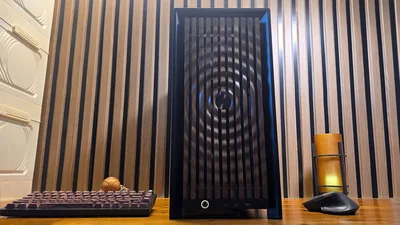
Given the cost and availability issues swirling around RAM, storage, and GPUs since late last year, it can be tough to get excited about building a new PC. But Corsair wants to tempt us back to the building realm by offering up a plethora of PC case options. The company’s 4000 Series cases are expanding to include both an RGB-fronted Frame 4000X RS case ($139 to start) and a Frame 4000D Wood variant ($129 to start).
But these are far from static SKUs, as Corsair has a configurator for these cases, which lets you choose from a nearly bafflinig list of options: 12 different front panels (six each in black or white), five different motherboard trays (including an aluminum model with shiny beveled edges), and two different types of PSU shrouds. There’s also a front-panel option with three USB-C ports, and either full-length side panels in glass or mesh. Then there are side panel kits that let you install a trio of extra fans on the bottom side, or snap in the company’s Xeneon Edge touchscreen.
These are by far the most customization options I’ve ever seen in a PC case line, and Corsair sent most of the accessories my way to check them out – it all came in three boxes that have made a mess of my office (and spilled over into my kitchen). I’m still not sure if I love or hate the “Elite Wood” front panel (which features real wood slats in a water- like ripple pattern, surrounded by the Corsair logo), but it’s definitely eye-catching.
Article continues below
Frame 4000X RS: RGB grille and four non-RGB fans
(Image credit: Tom's Hardware)
First off, let’s tackle the new cases as standard, without any configuration options. There’s the base model 4000D, which we reviewed and mostly liked last year, which is currently selling for $104. New to this launch are the Frame 4000D Wood RS, with vented wood slats in the front (similar to the Fractal North), starting at $129, and the 4000 Series model Corsair sent our way is the Frame 4000X RS, which features a transparent vented front with built-in RGB lighting and starts at $139. All are mid-tower cases built around the same basic chassis, support back-connect motherboards (up to E-ATX 305 mm x 277 mm), and are available in black or white.
You also get an adjustable anti-sag GPU support (and room for GPUs up to nearly 16 inches long), a tempered-glass side panel, and four included (non-RGB) RS120 fans as standard. These are nice enough cases, and I’m a sucker for wood accents. But it’s really the optional accessories that make the Frame 4000 lineup stand out. Let’s start with the front panels.
Pick your panel
Image 1 of 2
(Image credit: Tom's Hardware)
(Image credit: Tom's Hardware)
Corsair sent us four front panels, all in black to match the case we were also sent, though most are available in white as well. There’s the RGB Flow panel seen in the Frame 4000X RS section above (a $19.99 upgrade over the base metal Airflow front panel). We have the Pixel Glass panel that would probably look best if you opted for RGB fans (a more plain Flat Glass panel is also available) – both are $19.99. Then there’s the traditional Wood panel, with flat slats, available in walnut for the black panel or a lighter oak for white versions of the case ($29.99).
And of course, the most eye-catching (and most expensive, at $49.99) panel is the Elite Wood, which we’ve showcased in our main images. It adds a 3D surface pattern to the wood, which looks like a water ripple or soundwave circular pattern that radiates out from the center metal Corsair logo; That panel is also available in walnut or oak.
Get Tom's Hardware's best news and in-depth reviews, straight to your inbox.
Image 1 of 4
(Image credit: Tom's Hardware)
(Image credit: Tom's Hardware)
(Image credit: Tom's Hardware)
(Image credit: Tom's Hardware)
It’s striking to see what is effectively rippling wood, and a departure from the wood slats we’ve seen on several case fronts now, going back to the Fractal North. But to my eye, it also sort of kills the whole cozy, natural vibe that made wood-fronted cases feel fresh in the first place. I don’t hate it, but personally, I think I’d opt for the cheaper traditional wood slat panel. I also asked a couple of colleagues what they thought of the Elite Wood panel; one outright hated it, while another loved it. It’s definitely polarizing, but credit to Corsair for doing something unique with the wood case aesthetic. And the fact that it’s an add-on option means you’re only going to consider it if you like the way it looks.
Also, lest anyone suggest that Corsair isn’t using real wood here, Corsair says it’s FSC-certified for sustainability and social responsibility. And I would caution that its surface is easy to damage, as I’ve learned to expect as someone with a wood countertop and test bench (which I finished myself). After I removed all the panels from their package, I stacked them on top of each other. And a couple days later when I grabbed them for photography, I noticed that the round mounting pins from a panel above had somewhat damaged (or at least discolored) the surface of the Elite Wood panel. So if you are juggling panels with your 4000-Series case, you should probably take some care to protect the wood surface – like wrapping it in cloth or just not piling other components on top of it.
(Image credit: Tom's Hardware)
The 4000 cases come standard with a typical port allotment on the bottom of the case. You get a USB-C and two USB-A ports, and a combo audio jack. But for $24.99 extra, you can get the Elite front panel IO, which ditches USB-A for two extra USB-C ports. The yellow port is the fastest of the three, at 20 Gbps (provided your motherboard has a header capable of that speed. The other two USB-C ports are 5 Gbps USB (USB 3.2).
(Image credit: Tom's Hardware)
Swapping the front panel is as easy as removing two screws on the bottom and pulling the cables out from under / inside the chassis, then clipping the new one on, installing the screws, and re-routing the cables through the bottom.
(Image credit: Tom's Hardware)
While I love the idea of having access to more USB-C ports on the front of my case, I feel like losing USB-A altogether would create its own inconveniences, so I would probably skip this upgrade option. It’s also worth pointing out that the power button has its own ARGB, which is fine. But it requires its own RGB header connection, so if you opt for the RGB front panel, you’ll need to plug in two RGB headers for something that, were this case not so modular, would almost certainly require just one RGB cable / connector.
A trio of motherboard trays
(Image credit: Tom's Hardware)
Corsair offers up three motherboard trays (five if you count the white options for the two lesser trays). The standard tray (center) and RapidRoute 2.0 ($9.99 extra) are both steel and support rear-connect motherboards in multiple sizes. The RapidRoute (right) model includes several velcro cable routing clips that can attach anywhere on the dozens of mounting holes around the tray.
(Image credit: Tom's Hardware)
The Elite tray ($79.99) is aluminum (Meteorite Aluminum in marketing speak), and offers better looks and more rigidity. It has mirrored beveled edges, which strikes me as a pretty odd detail for a tray that is going to be covered by a motherboard on one side and a steel side panel on the other.
I first attempted to install my test system using the Elite tray, but as I discovered after installing our MSI Project Zero Micro ATX motherboard, the Elite tray blocks the area of the bottom headers, so it only supports full-sized ATX motherboards with rear connectors. I
t’s also worth pointing out that the tray attaches to the steel frame via a few screws, so any extra rigidity provided by the aluminum tray is compromised by the flex of the internal steel and the tabs that hold the tray in place. There’s not a worrisome amount of flex, I am just not sure the aluminum tray adds much of actual substance. It’s also not available in white, unlike the other two trays.
(Image credit: Tom's Hardware)
In the end, I went with the RapidRoute 2.0 tray, where the snap-on cable clips helped wrangle all the wires behind the motherboard. I would spend more time on wire cleanup if I were building this system for long-term use, but even a couple of clips helped tame most of the cable nest.
Side panels, PSU shrouds, and fan / screen mounts
Corsair also offers two PSU shrouds. The full-length option leaves the bottom of the case open, which you’ll want to do if you aren’t using the default full-length glass panel, to make room for fans or Corsair’s screen. Our case shipped with the compact shroud ($14.99), which extends the full width of the motherboard tray, and has plenty of room for my PSU and extra cables, while also hiding them for a cleaner interior.
(Image credit: Tom's Hardware)
But if you don’t feel the need for a full-length glass side, Corsair also has a couple of options that can make use of the lower third of the case. A Cold Air Intake kit ($39.99) gives you a glass panel for the top portion, and additional mounts for three 120mm fans on the bottom. For those concerned about GPU temperatures, this might be appealing – although I’d prefer it if the fan mounts were angled upward, rather than horizontally, which will pull in cool air just below the GPU, in most setups.
If you own or are considering buying 14.5-inch Corsair’s Xenion Edge screen, there’s also the $39.99 LCD Mounting kit, which again keeps the glass panel in the upper 2/3 of the case, while providing a recessed area where you can house the 2,560 x 720 touch display, so you can display and control smart devices and launch apps via Elgato’s Stream Deck software, add stat widgets, or display pretty much whatever you like. This setup is far more versatile than many in-case displays we’ve seen in recent years, but it’s also expensive – on top of the cost of the 4000 case and the added cost of the mounting kit, the Xeneon Edge costs $249.
Apart from this large collection of accessories, if you’re using the company’s configurator for these cases, the company will also happily offer up the aforementioned Xeneon Edge screen, a three-pack of ARGB RS120 fans ($34,99), or a pack of Corsair’s single-turn QuikTurn fan screws ($14.99).
Bottom line
(Image credit: Tom's Hardware)
Case companies have been promising customization options for years now (and some have delivered, at least to a degree). But with its 4000 Series chassis, Corsair has delivered more options than I’ve ever seen, both substantive and cosmetic. It’s an appealing proposition for those who like to dial in a more custom look, or those who want their case to evolve along with their needs and budget.
And I like that Corsair is attempting something different with its Elite Wood panel (which, at $49.99, seems like a surprisingly reasonable price for what is some pretty complex woodwork). I’d probably stick with the standard wood panel, but that’s because I’m one of those strange people who keep their PC in the living room, below the OLED screen that I use both as a TV and a monitor.
(Image credit: Tom's Hardware)
The only real nit that I have to pick about all these accessories and the new 4000 series case models is that the core chassis that all of this is based around, which starts at $104, has some flex and otherwise doesn’t feel super premium. But tack on most of the available accessories (not counting the $249 screen), and the fully configured 4000 case could cost as much as $340 — which is a long way from budget case territory.