Amazon DynamoDB now supports real-time vector search at any scale
| |
Today, we’re announcing the general availability of vector search in Amazon DynamoDB. You can now store vector embeddings alongside your operational data in DynamoDB and run similarity searches directly against that data, without replicating it to a separate vector store.
DynamoDB supports native vector search with single-digit millisecond latency at 99%+ recall, and is designed for any scale, even trillions of vectors. There are no servers to provision, patch, or manage, and no software to install, maintain, or operate. The service has no versions, no maintenance windows, and zero downtime maintenance.
Vector indexes have no storage limits and scale horizontally as your data grows. You can now build applications that require semantic retrieval on agentic memory, retrieval augmented generation, recommendation engines, personalized experiences, anomaly detection, and more using DynamoDB and its native vector search.
If your application already uses DynamoDB, adding vector search previously required copying data into a dedicated vector database while maintaining a synchronization pipeline between the two services. This added operational overhead, data movement costs, licensing costs, and the challenge of maintaining predictable low latency at scale. With vector search built into DynamoDB, your vectors and operational data share the same serverless infrastructure and the same pay-per-request pricing model.
Vector search in DynamoDB introduces a new index type that you create on an attribute storing vector embeddings. You generate embeddings using a model of your choice, such as Amazon Bedrock Titan Text Embeddings, Cohere Embed, or OpenAI text embedding models, and store them as a list of floats in your table using a standard PutItem call. You then create a vector index on that attribute and specify the number of dimensions, the distance function, and any non-vector attributes you want to use as filters to narrow search results at query time. The SearchVectors API accepts a query vector, the number of results to return (up to 100), and optional filter conditions. It returns results ranked by similarity.
Use vector search in DynamoDB when your operational data already lives in DynamoDB and you want to add similarity search without provisioning a separate database or managing a synchronization pipeline. DynamoDB is fully serverless, so vector search scales automatically with no infrastructure to manage. It supports up to 4096 dimensions, Euclidean, Cosine, and Dot product distance functions, and inline filtering.
Getting started with vector search in DynamoDB
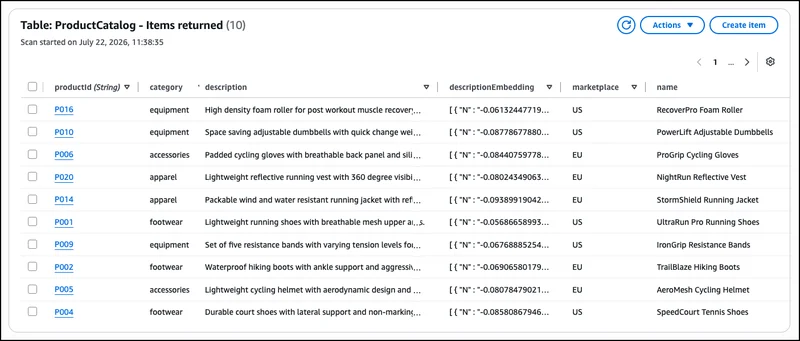
This walkthrough shows how to add vector search to an existing DynamoDB table using the DynamoDB console. The scenario contains an online sporting goods store with a product catalog table. Each item has standard operational attributes such as
productId, category, description, marketplace, name, and price. The goal is to add semantic search so shoppers can find products using natural language queries rather than exact keyword matches.1. Prepare DynamoDB table
To enable semantic search, I first generate vector embeddings for the product descriptions already in my table. Embeddings are numerical representations of text generated by a machine learning model that capture the meaning of the content. Two items with similar descriptions will have embeddings that are close to each other in vector space, which is what makes similarity search possible.
I can generate embeddings using Amazon Bedrock Titan Text Embeddings or another embedding model, then add them to my table using the AWS Management Console, AWS Command Line Interface (AWS CLI), AWS SDKs, AWS CloudFormation, or other infrastructure-as-code (IaC) tools.
For an existing table like ProductCatalog, I add the embeddings to each item as a new attribute named descriptionEmbedding using an UpdateItem call. DynamoDB stores vector embeddings using its existing List data type. Each element in the list is a Number that represents a single float value of the embedding vector. This means I do not need a new data type or schema change to start storing vectors alongside my existing operational attributes.
2. Create vector index
In the DynamoDB console, open the
ProductCatalog table and choose the Indexestab. I choose
Create vector index. On the
Create vector indexpage, I fill in the index details as follows. I enter
ProductDescriptionIndex as the Index nameand
descriptionEmbedding as the Vector attribute.
I enter the number of Dimensions that matches my embedding model’s output and select Cosine as the Distance function. Cosine measures the angle between vectors rather than their magnitude, which makes it effective for comparing semantic similarity of text embeddings. Vector search in DynamoDB also supports Euclidean and Dot product distance functions.
- Euclidean: Use when the magnitude of the vectors is meaningful, such as clustering items by a numeric value like purchase count.
- Dot product: Use when both direction and magnitude matter, such as in recommendation systems that weight interest alignment and frequency together. As a general rule, match the distance function to the one used to train your embedding model for the best accuracy.
I enter marketplace as the Partition key. The vector index partition key controls how DynamoDB distributes vectors across partitions, allowing the index to scale out while maintaining predictable latencies. Each search is scoped to a single partition key value, so a product catalog serving multiple marketplaces can search within one marketplace’s inventory without scanning the entire index. The partition key is optional, but recommended for large datasets with high query throughput.
I expand Inline filter attributes and add category as a filter attribute. This helps me narrow search results to a specific product category at query time. Filter conditions support exact-match values only; range conditions such as BETWEEN or BEGINS_WITH are not supported. I leave Attribute projections set to All so that all table attributes are returned with my search results. Choose Create vector index and wait for the index status to change to Active.
3. Run vector search
I generate a query vector from a natural language search term such as “*lightweight running shoes for summer*” using the same embedding model I used for the product descriptions. In the DynamoDB console, I choose **Explore items** in the left navigation pane and select the `ProductCatalog` table.
Choose Search to switch to vector search mode. I select ProductDescriptionIndex from the Select a vector index dropdown, paste the query vector into the Search vector field, and set Number of results (Top K) to 5. I enter US as the Partition key value to scope the search to the US marketplace. I expand Inline filter attributes and set category equal to footwear to narrow the search to footwear products only. Now, choose Run.
DynamoDB returns the five most semantically similar products in the footwear category, ranked by similarity score, alongside the standard operational attributes such as name and price in the same response. The similarity score’s meaning depends on the distance function selected for the index. For Cosine and Euclidean distance functions, lower similarity score values indicate higher similarity, with a score of 0 indicating identical vectors. For the dot product distance function, higher similarity score values indicate higher similarity.
To interact with vector search programmatically, including calling APIs and searching documentation, try the AWS MCP Server and plugins with your preferred AI coding tool. To learn more, visit the Amazon DynamoDB Developer Guide.
Get started today
Vector search in Amazon DynamoDB is generally available in all commercial AWS Regions, including the AWS GovCloud (US) Regions. For Regional availability and a future roadmap, visit the AWS Capabilities by Region. For pricing details, visit the Amazon DynamoDB pricing page.
Start exploring vector search in DynamoDB today and send feedback to AWS re:Post for Amazon DynamoDB or through your usual AWS Support contacts.
— Esra