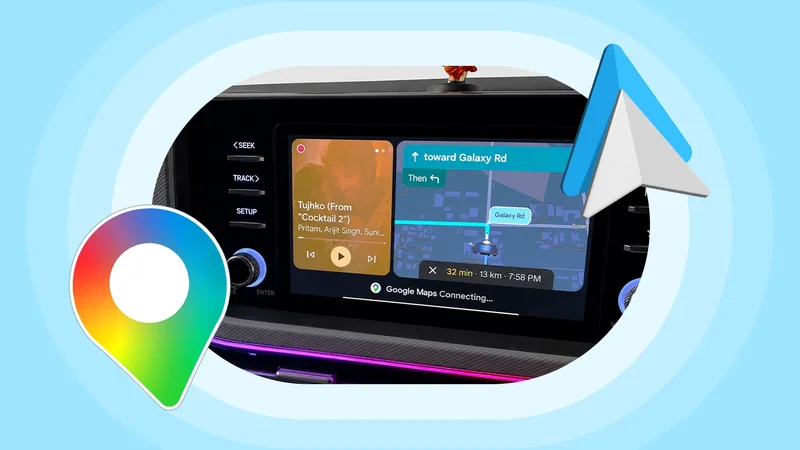
A long road trip can quickly become frustrating when Google Maps keeps suggesting inconvenient routes, Android Auto feels cluttered, or constant notifications interrupt the drive.
That is why I never start a highway journey with my usual everyday setup.
Before leaving, I spent a few minutes adjusting a handful of Google Maps and Android Auto settings to improve the navigation, reduce distractions, and keep essential controls within easy reach.
Related
Navigation isn't why I keep using Gemini in Android Auto
My everyday setup was not road-trip ready
I downloaded the entire route offline
For everyday driving, my usual Google Maps and Android Auto setup works well.
I normally use it for short city trips, familiar routes, and quick errands where mobile coverage is reliable and missing a turn is not a major problem.
A long road trip is completely different. I am dealing with unfamiliar highways, patchy network coverage, longer stretches, and far more time behind the wheel.
I learned this the hard way after starting a few trips without changing anything.
My Android Auto launcher was filled with apps I did not need, message alerts kept interrupting my drive, and Google Maps occasionally suggested routes that made sense for city driving but were not ideal for a highway journey.
The first thing I do before a long journey is download the route in Google Maps for offline use.
I never assume that mobile data will work everywhere, especially when I am driving through remote highways, hilly areas, or smaller towns.
Even a brief network drop can become stressful when I am approaching an unfamiliar exit or trying to find the next fuel stop.
I also make sure to download a wider area instead of saving only the destination. My route may change because of traffic, a road closure, or a wrong turn, so I want Google Maps to cover the surrounding roads as well.
Before leaving, I open the offline maps section and confirm that the map has finished downloading and is still up to date.
I double-check my route preferences
Can be handy in tricky situations
Before every long road trip, I review Google Maps’ route options instead of blindly following the first suggestion.
Settings like Avoid tolls, Avoid highways, or Avoid ferries can remain enabled from an earlier journey, and I may not notice until Maps sends me through smaller roads or adds a significant detour.
I usually compare at least two or three suggested routes before leaving. The fastest route is not always the best one.
I also look at the total distance, estimated toll charges, road type, traffic conditions, and the number of turns.
I would rather pay a reasonable toll and stay on a well-maintained highway than save a small amount and spend an extra hour navigating narrow roads through unfamiliar towns.
This check is especially useful when I am traveling with family.
A slightly longer highway route may have better fuel stations, restaurants, and restrooms along the way, which makes it more practical than the shortest option.
I declutter the Android Auto launcher
Keep essentials at the top
I also clean up the Android Auto launcher and remove anything I know I will not use.
My regular setup tends to collect apps over time, including messaging services, media players, and utilities that make sense in daily life but only create clutter on the road.
When I am driving for several hours, I don’t want to swipe through multiple screens to open Maps, Spotify, Audible, or the Phone app.
I reordered the launcher from the Android Auto settings menu, so my most important apps appear at the top.
Google Maps stays within immediate reach, followed by music and podcast apps, Phone, Messages, and any service I may need for the journey.
This small change reduces unnecessary taps and keeps me focused on the road instead of searching through a crowded app grid.
Creating and pinning Gemini actions on the Android Auto launcher
A neat automation trick
One of the most useful changes I make before a long road trip is creating Gemini actions and pinning them to the Android Auto launcher.
These shortcuts let me trigger common commands with a single tap, so I do not have to repeat the same request every time or navigate through multiple menus.
For example, I can create an action such as ‘Send my ETA to Jenny on Messages’ and pin it beside Spotify.
I can also keep another action for ‘Find the nearest fuel station,’ which is useful when the fuel warning appears in the middle of an unfamiliar highway.
I can build similar shortcuts for calling a family member, playing a specific playlist, checking traffic ahead, and more.
The option is available under the Customize Launcher menu in Android Auto settings.
My road trip tech routine
These changes may seem minor, but together they make the entire drive feel calmer, safer, and far more organized.
So what are you waiting for? Apply these tricks before your next road trip and enjoy a smooth ride.
If you still haven’t explored Gemini in Google Maps on Android Auto, go over this post to learn everything about it.