When you come back from your vacation or big event and have a million photos to post, how do you share them on social media?
Are you the kind of person who makes a 20+ photo album for people to swipe through?
That couldn’t be me. Maybe this is my millennial age talking, but I always loved uploading pictures arranged in a grid or collage, one quick bang of all the highlights, no scrolling required.
You’d think this was an easy task for apps these days, especially one with the Google name attached.
I tried using Google Photos’ Collage tool again to see if I should switch, and I just couldn’t do it. Samsung Gallery’s collage feature has one key ease-of-use feature that has me coming back every time.
Making a collage could not be simpler
Only a few taps on each app will get you there
Creating a collage in either app is super simple.
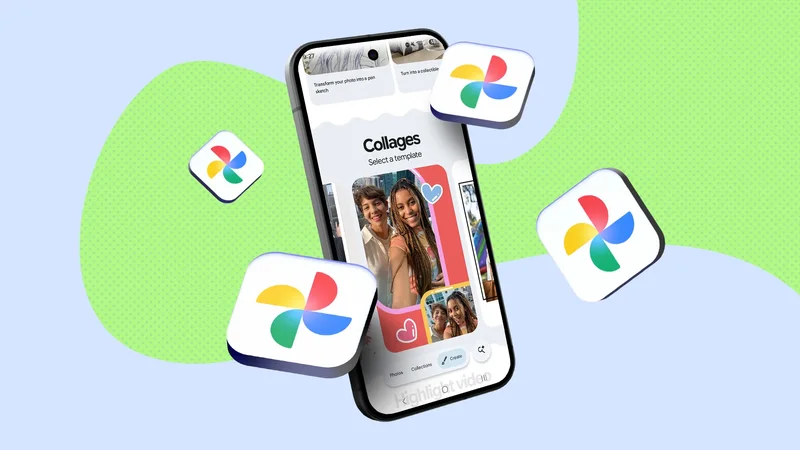
Google Photos Collage tool can be found in the Google Photos app. At the bottom of the screen, click the Create button.
You’ll then see the Your Tools page. On this page, either click the button labeled Collage to choose your photos first, or scroll down to choose from pre-made templates first.
After you’ve chosen your template and photos, you’ll see a preview screen where you can drag and drop your photos into a different order, zoom in and out of photos, or try other templates. Then you’ll click Save, and that’s that.
You can select photos in the Google Photos collage tool by selecting recognizable faces, choosing albums, or searching keywords.
Samsung Gallery’s collage tool can be accessed through the gallery, though it isn’t very intuitive to get there.
With your gallery open, press and hold a photo you’d like included in the collage. Then, you can select more than one photo by tapping on subsequent photos.
After you have selected the photos you’d like included in your collage, click the Create button in the lower-left corner of the screen. This will take you to the preview page where you can play around with layouts, backgrounds, and border features.
Both apps are simple and clean. Both give you what you want: a collage of photos you’d like shown together. But only one has a small feature that makes a big difference in ease of use, in my opinion.
The missing piece
Both apps are comparable, but only one gives me the editing power I need
On both apps, you’ll use a preview screen to adjust and edit your collage.
If you use Google Photos, you’ll notice a handful of simple grid styles as well as a few jazzy themed templates. I’m not a jazzy kinda gal, so I chose a grid layout.
I was disappointed to find it missing my favorite Samsung Gallery collage feature. It’s the adjustable borders.
When you preview your collage in Samsung Gallery, you’ll notice that all the borders between the photos are movable. You can drag them around to create a super-skinny section for the Statue of Liberty, a long wide section for a hot dog, or whatever dimensions best suit your subject matter.
That probably sounds a bit anticlimactic, but it makes all the difference.
I’m not a professional photographer. My photos often have subjects that are too large, too small, or uncentered. Without the ability to adjust these borders, you’ll quickly find, to your disappointment, that many photos just won’t fit properly.
The quirky borders and fun colors were great, but didn’t improve my user experience
Plus there’s a big difference in the maximum photos allowed
When I was playing around with Google Photos, I liked the fun frame options. They’re quirky, cute, and a nice pre-made choice for someone looking for more than just a grid.
I also like the option to search photos by face (as is typical for Google Photos), but that was really where the list ended.
The lack of moving borders was frustrating, and I disliked that the maximum number of photos you can choose is 6.
While Samsung Gallery doesn’t have the same sparkly templates, the movable borders and a maximum photo count of 14 photos in a collage just can’t be beat.
Sorry Google, looks like I won’t be switching any time soon.
There are tons of other choices, but I don’t need them
If I can avoid downloading separate apps, I will
I hear you social media experts yelling at me from the crowd, “There are way better apps than those two for collages!”
I bet you’re right. A quick search of recommended picture collage apps results in a huge list of names, most of which I don’t recognize.
But I also note that many of these apps are more powerful (do people actually load up GIMP to make a simple collage?), including stickers, animations, overlapping, text editing, and so forth.
In my mind, these are in a separate category of app. They’re for the scrapbooking aesthetic type of collage. Which I love!
But when I need a nice bare-bones, quick-and-dirty collage to post several dishes from a restaurant, I truly need Samsung Gallery or Google Photos to get the job done.
I might switch over to Google Photos if it ever adds the movable borders
There you have it, folks; the simple border editing tool made all the difference.
I don’t know if others will feel the same way, but it felt really frustrating to me not to be able to edit them. Just goes to show how the smallest features can sometimes make the biggest impact when it comes to user experience.
I’ll keep my eye on Google Photos; hopefully Google will tweak its collage tool a bit more in the future. There’s a lot of cool stuff going on in the Create section, but this one I’m going to leave alone for now.