I use Google Keep and Gemini every day as if my life depends on them. I take notes, make checklists, and store important information for everything I might need daily.
Whether it's buying baby essentials, finding talking points for a meeting, or making a simple shopping list, Google Keep is where I jot everything down.
But sometimes, with my busy schedule or when I'm out and about, I tend to forget to type my checklists into Keep. That is, until I learned about Keep's use of Gemini for creating checklists.
Gemini has completely changed how I use Google Keep
Taking advantage of Google's AI
I'm wary of AI being incorporated into every app and piece of software we use today. But when Google incorporated Gemini into Keep, it was something I could get behind.
Gemini's new AI-powered voice-to-list feature in Keep has transformed how voice notes work.
Earlier, recording a voice note in Google Keep was basic, and the transcription was never fully accurate.
I had to edit and clean up transcripts manually, or sometimes format them into lists, because Keep didn't know how.
However, with Gemini integrated into Google Keep, I don't have to edit or format any of my ramblings.
With the latest update to Keep, Gemini not only transcribes my speech accurately but also formats it into checkbox lists.
What's neat is that it understands my conversational-style recordings and converts them into structured lists without any intervention from me.
While this might not seem impressive at first, imagine me taking care of a seven-month-old baby and three dogs while juggling a busy schedule.
That's when I started to use Gemini with Keep to make my workflow easier.
The new Gemini-powered voice-to-checklist feature saves me time and frustration while I juggle life in the background.
It also lets me get more done, as I no longer have to remember to add a note in Google Keep later.
It would be an understatement to say I am more efficient at carrying out tasks I would have previously forgotten about.
What I've noticed is that using Gemini from my home screen and asking it to add a list via voice is more accurate than doing it the traditional way.
When uploading a voice note in Keep, I wouldn't get the checkbox line break every time, even after using the + button.
Google Keep only allows 30-second voice recordings, which isn't ideal for creating lists if you tend to ramble like me.
Since I ramble a lot in voice recordings, the voice note would stop before I was done dictating my list, requiring me to add items manually.
That was more work than I wanted.
Now, I prefer to fire up Gemini to make checklists with Keep, as it is faster, more accurate, and more efficient.
How to use Gemini with the voice-to-checklist feature in Google Keep
Setting it up is quite easy
To use the voice-to-checklist feature in Google Keep, first ensure Gemini is connected.
It's a simple setting you need to tweak, and here's how you go about it:
-
Open the **Gemini**app. -
Tap **Settings**. -
Select **Personal Intelligence**. -
Tap **Connected apps**. -
Toggle the button for **Google Workspace**.
You also need a Google AI Pro or Ultra subscription to use Gemini's voice-to-list feature with Google Keep.
After you've followed the above steps, you can now start making lists with Gemini and Google Keep.
You don't have to open the Google Keep app to create a shopping list and tasks until you want to access them when you get around to doing the task.
What I liked was that I didn't need to speak in a certain way. Gemini can recognize your intent and understand natural speech.
That's not the case with traditional voice notes in Google Keep, as I would have to speak slowly and clearly.
For example, here's a real-world voice prompt I used with Gemini earlier this week.
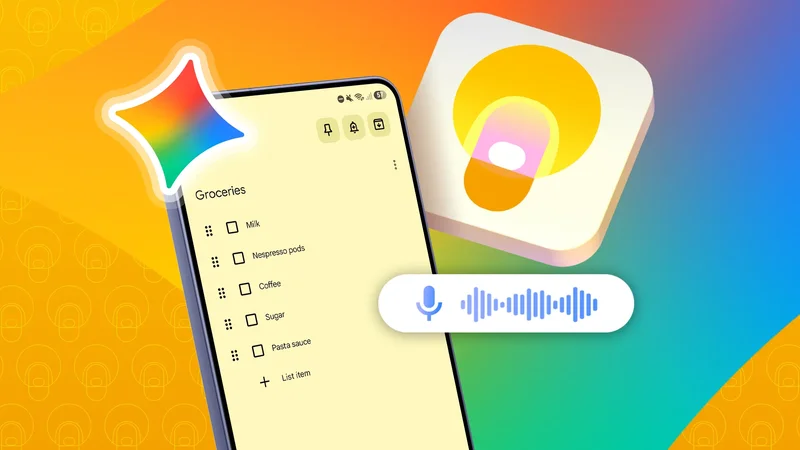
I need milk, Nespresso pods, ground coffee, sugar. Add pasta, pasta sauce, Tabasco sauce, and Cholula hot sauce to the list.
Gemini accurately picked up all the items, created a checklist-style shopping list, and saved it to Keep.
To put things into perspective, the above prompt was a random early-morning brain dump while I gathered my senses.
Fair warning, though: Using Gemini in noisy surroundings or with extremely fast speech could result in inaccurate listings. Luckily, I wasn't caffeinated yet, and it was early in the morning.
I recommend trying Gemini alongside Keep if you are as busy or as forgetful as I am.
Gemini and Keep make a perfect match
Using Google Keep was already a daily ritual for me
After integrating Gemini with Keep, I started adding shopping lists and tasks on the fly without worrying about format or accuracy.
If you're getting tired of adding shopping lists manually or relying on inaccurate voice notes in Keep, I implore you to try my method.
It got rid of my "I'll organize it later" attitude and made me more efficient at completing my tasks.