Sometimes it feels like there's no escaping subscriptions. I seem to pay a monthly fee for the tools in my digital arsenal. I find myself nostalgic for the days of one-off charges with the occasional upgrade fee for some new refinements to a service.
Apple, Adobe, Microsoft, Google, they've all jumped on the subscription bandwagon. But just how many more can we afford? To be honest, I don’t think any of us are happy about this software evolution. I know I’m not.
I decided to take action (for the good of my wallet, if nothing else).
Thankfully, there are alternatives. Take Gimp, for instance, a free, open source image editing program, constantly maintained by a community of enthusiastic and knowledgeable programmers. It can do most of what Photoshop does, so why not give it a go and save yourself a bundle?
There is however a problem with jumping ship, which can be pretty major: sure, you can do a lot of clever image alterations with Gimp, but its interface looks nothing like Photoshop.
And after years of using a particular tool, you’ve got used to its quirks and have built up a ton of muscle memory. If you're anything like me, you can probably use Photoshop with your eye closed by now. I can't imagine the hassle of having to learn new functions, dialogue boxes, and keyboard shortcuts just to do the exact same thing again?
But I've found a solution to this.
Enter PhotoGimp
The beauty of open source software, is that it can be highly customizable, and what better way to entice creators into the wonderful world of free software than to make said software look and behave like the one they’re used to.
This is what PhotoGimp is all about.
Applying that skin is simple enough. First, you need to have installed GIMP, which you can get by clicking here. It works across Windows PCs, Macs and Linux systems.
Once that’s done, launch GIMP so the proper preferences folder is created, then head on over to PhotoGimp by clicking here. Grab that patch, which also works on either of those three platforms.
Or, just ignore that website altogether. Despite being a legitimate website, I encountered a glitch once or twice where my browser warned me that I was suddenly heading towards a ‘Deceptive Website’, or that my ‘File Download is Ready’.
I found a workaround by just using the direct GitHub link I acquired for you here. I travel the dangerous virtual roads, so you don’t have to.
Follow the instructions
Now, getting Adobe's creative apps installed on your machine is a piece of cake. The process for PhotoGimp is a little more...rough around the edges.
The instructions are clear, but they’re out of date: the folder PhotoGimp downloads to your computer is labelled “3.0”, but the latest version of Gimp has a folder labelled “3.2”. The fix is simple: get rid of the old folder, and rename the new one “3.2”… but as of this writing, the instructions won’t tell you that.
Still, now you know.
This is really the only tricky part of the installation process. Assuming all this moving around of files happened without a hitch, the next time you launch Gimp, you’ll be graced with a very Photoshop-like interface.
Turning Gimp into Photoshop
Now I don’t know about you, but a familiar interface - and keyboard shortcuts that work on muscle memory at this point - does wonders to my enjoyment of a different software package.
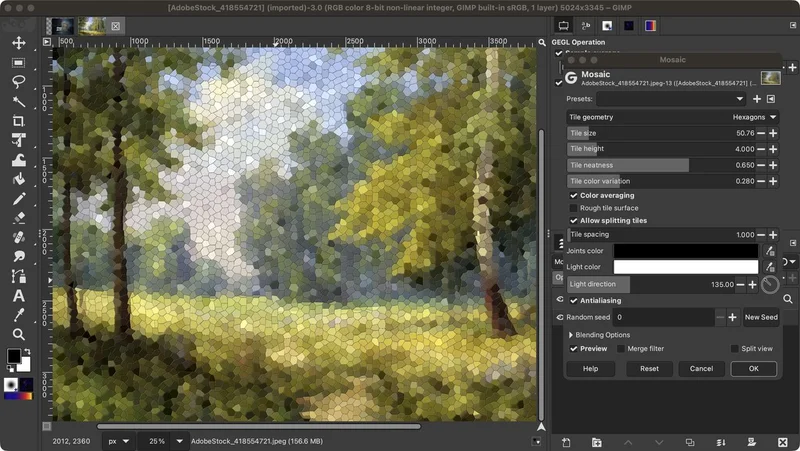
That isn’t to say everything’s in the same place as you’re used to it on the more expensive and established platform. But it’s similar enough to make the transition so much easier; the layers menu are in the right place, all the tools you need are stacked in a sidebar to the left, the Inspector’s top right, it all feels very familiar.
Now even with the Photoshop-style patch, Gimp still is a different tool. Some functions will be different. Others will be missing altogether, But in my own experience, I found that the vast majority of what many consider to be a standard set of features, are present and easy to use - especially when it all looks quite similar to what you are used to.
Put simply, if you were at all pondering about the possibility of stepping away from Photoshop, then PhotoGimp will make the process so much easier.
Steve has been writing about technology since 2003. Starting with Digital Creative Arts, he's since added his tech expertise at titles such as iCreate, MacFormat, MacWorld, MacLife, and TechRadar. His focus is on the creative arts, like website builders, image manipulation, and filmmaking software, but he hasn’t shied away from more business-oriented software either. He uses many of the apps he writes about in his personal and professional life. Steve loves how computers have enabled everyone to delve into creative possibilities, and is always delighted to share his knowledge, expertise, and experience with readers.